Login and Logout
Use this page to sign in to CTB Admin and sign out when you are done. All access to the system requires a valid username and password.
Summary
Use this page to start and end your CTB Admin session securely. You log in with your assigned account and log out when work is complete, especially on shared devices.
When to use this page
- Starting a new work session in CTB Admin.
- Switching between user accounts.
- Ending a session securely before leaving your workstation.
How to access this page
Open your browser and navigate to your CTB Admin URL. The login page appears automatically when you are not signed in.
Step-by-step instructions
- Open your CTB Admin URL in a browser.
- Enter your Username and Password.
- Click Log in -> to open the Dashboard.
- When you are done, click the user avatar in the top-right corner.
- Click Log out to end your session.
Field reference
- Username - Your assigned CTB Admin login name.
- Password - Your account password. It is case-sensitive.
- Log in - Submits your credentials and opens CTB Admin if they are valid.
- Log out - Ends your active session immediately.
Logging In
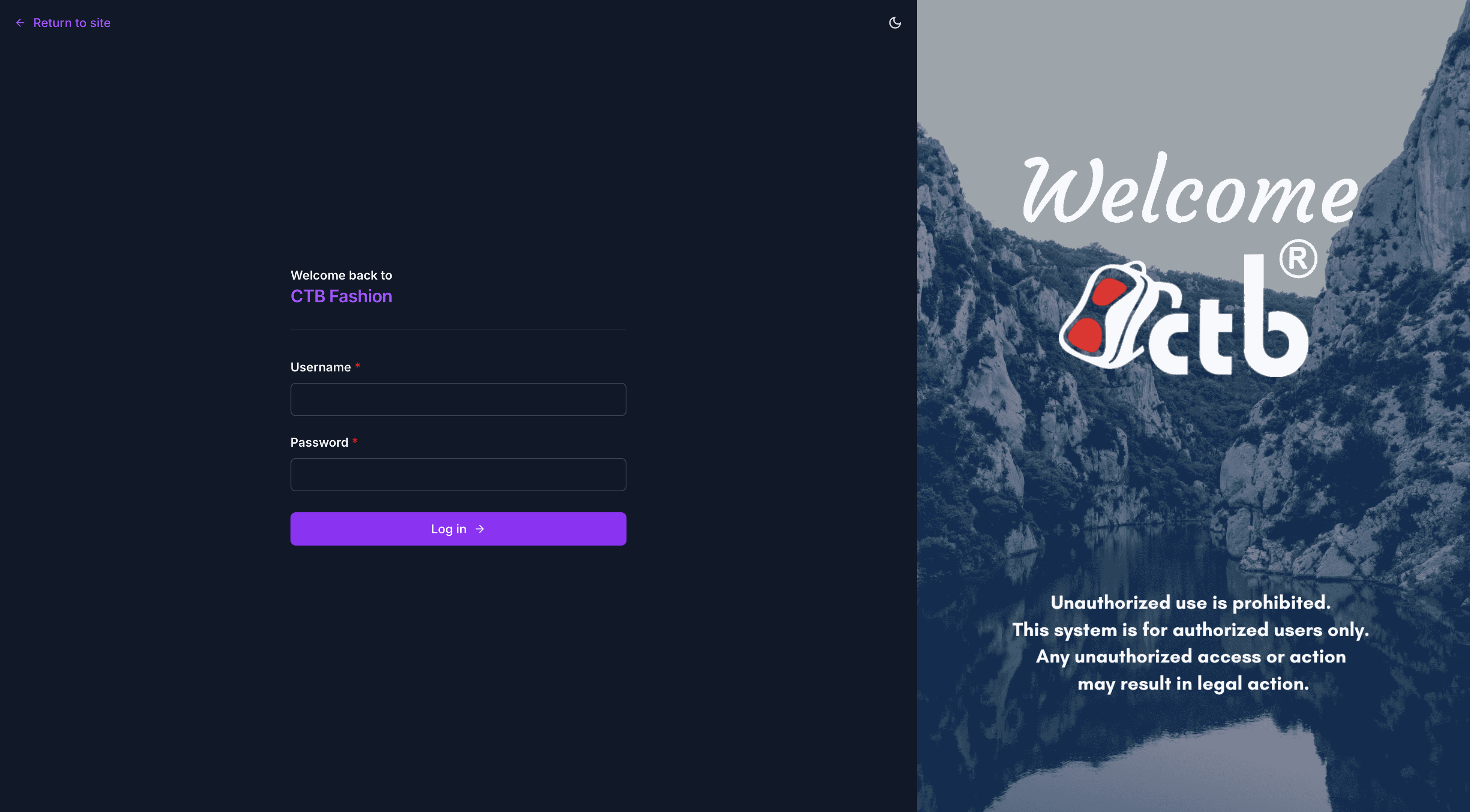
The login page displays a "Welcome back to CTB Fashion" heading alongside the CTB logo.
- Enter your Username in the first field.
- Enter your Password in the second field.
- Click Log in →.
If your credentials are correct, the system redirects you to the Dashboard.
Return to site
The ← Return to site link in the top-left corner takes you back to the public-facing website without logging in.
Failed Login
If you enter an incorrect username or password, the form displays an error message. Check your credentials and try again. Contact your administrator to reset your password if needed.
Session Timeout
CTB Admin automatically ends your session after a period of inactivity. You will be redirected to the login page and must sign in again.
Logging Out
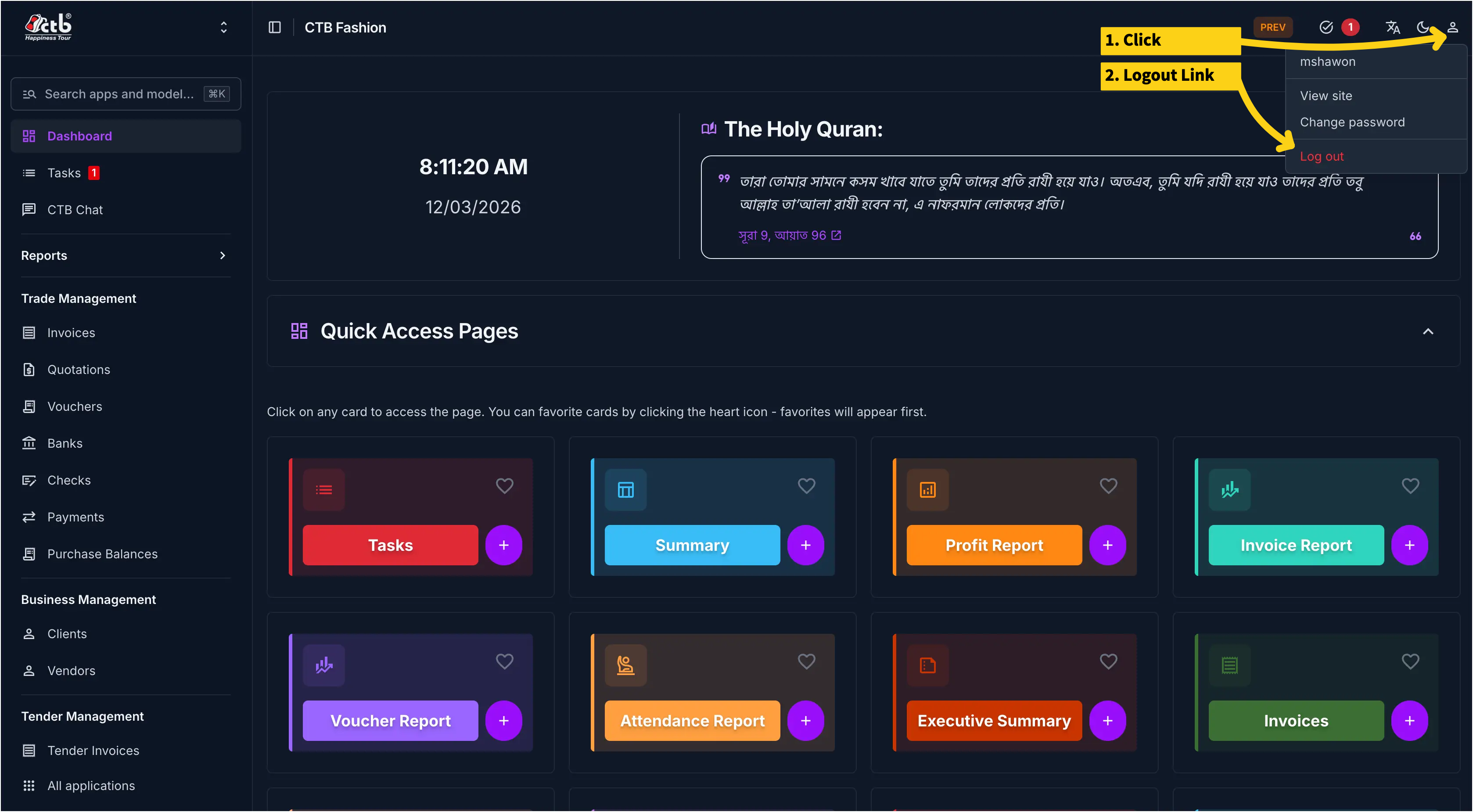
To sign out of CTB Admin:
- Click the user avatar icon in the top-right corner of any page.
- A dropdown menu appears showing your username, View site, Change password, and Log out.
- Click Log out (shown in red).
- The system signs you out immediately.
Shared Computers
Always log out after each session on shared or public computers to protect business data.
Tips and common issues
- If the login page does not load, check that you are using the correct URL and that the service is available.
- Passwords are case-sensitive. Make sure Caps Lock is off before entering your password.
- If you are redirected back to the login page after signing in, your browser may be blocking cookies. Check your browser cookie settings.
- Only administrators can create user accounts or reset passwords. Contact your administrator if you are locked out.
Related pages
- Dashboard — The first page you see after a successful login.
- User Management — Add or manage user accounts (administrators only).