Add Employee
Use this page to register a new employee in CTB Admin. An employee record stores personal information, emergency contact details, job assignment, and salary settings that are used for attendance, payroll, wages, and payouts.
When to use this page
- Onboarding a new staff member before payroll starts
- Creating an employee profile before recording attendance or salary data
- Storing contact details, identity documents, and salary limits
How to access this page
From the sidebar, go to Employee → Employees. On the Employees list page, click the purple (+) icon in the top-right corner.
The system opens the Add Employee page.
General Information
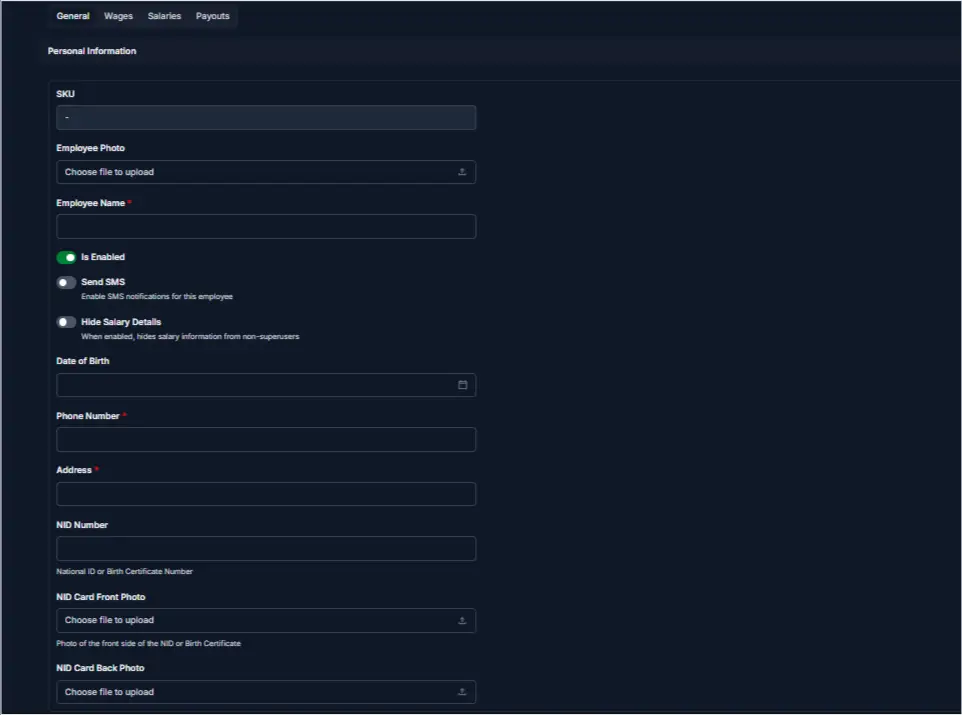
Fill in the following fields:
| Step | Field | What to Do | Description |
|---|---|---|---|
| 1 | SKU | Leave as generated | The system-generated employee code |
| 2 | Employee Photo | Upload an image if available | Employee profile photo used in lists and records |
| 3 | Employee Name | Enter the employee name | The name used in employee records, payroll, and reports |
| 4 | Is Enabled | Turn ON or OFF | Controls whether the employee is active |
| 5 | Send SMS | Enable if needed | Sends SMS notifications for employee-related activity |
| 6 | Hide Salary Details | Enable if required | Keeps salary information hidden in employee-facing views |
| 7 | Date of Birth | Select the birth date | Used for personal records |
| 8 | Phone Number | Enter the main contact number | Primary phone number for communication |
| 9 | Address | Enter the current address | Employee location or mailing address |
| 10 | NID Number | Enter the NID or identification number | Used for identity verification |
| 11 | NID Card Front Photo | Upload the front image | Front side of the employee’s NID card |
| 12 | NID Card Back Photo | Upload the back image | Back side of the employee’s NID card |
Required Fields
Fields marked with a red star (*) are mandatory.
Emergency Contact
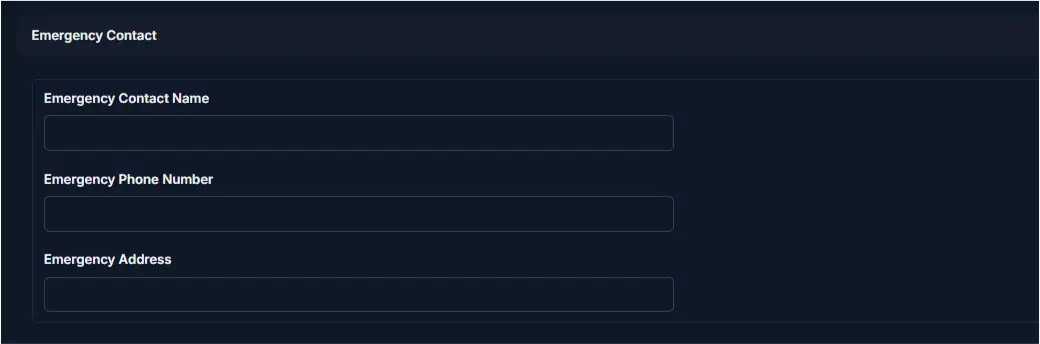
| Step | Field | What to Do | Description |
|---|---|---|---|
| 1 | Emergency Contact Name | Enter the contact name | Person to call in case of emergency |
| 2 | Emergency Phone Number | Enter the phone number | Backup contact number |
| 3 | Emergency Address | Enter the address | Emergency contact location |
Employment Details
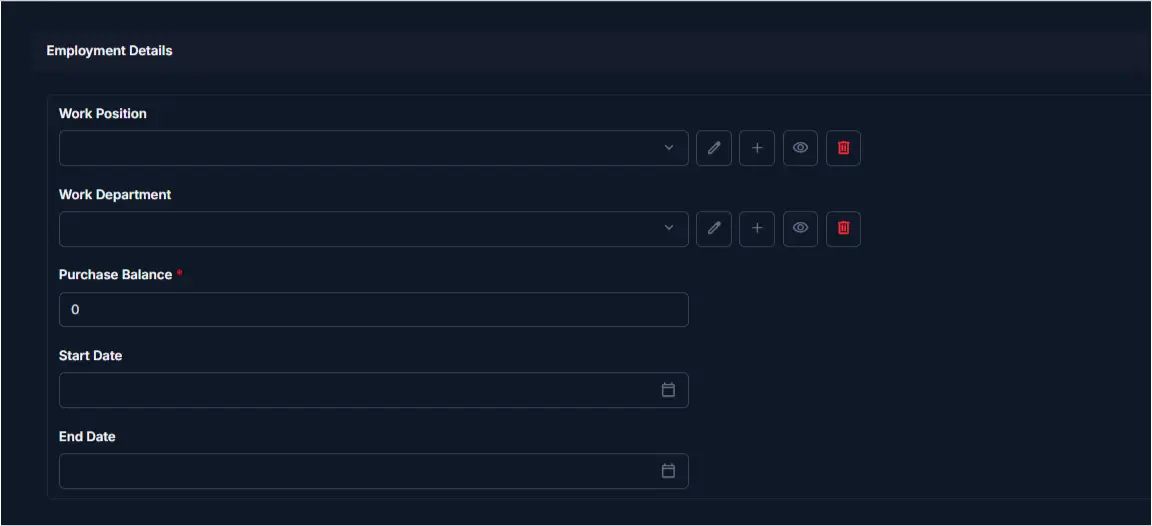
| Step | Field | What to Do | Description |
|---|---|---|---|
| 1 | Work Position | Select a position | Assigns the employee to a job role |
| 2 | Work Department | Select a department | Places the employee in the correct department |
| 3 | Purchase Balance | Enter the starting balance | Used for employee purchase or ledger tracking |
| 4 | Start Date | Select the start date | The date the employee joined or became active |
| 5 | End Date | Select if applicable | Leave empty if the employee is still active |
Note
The small action icons beside the position and department fields let you manage those linked records without leaving the page.
Salary Information
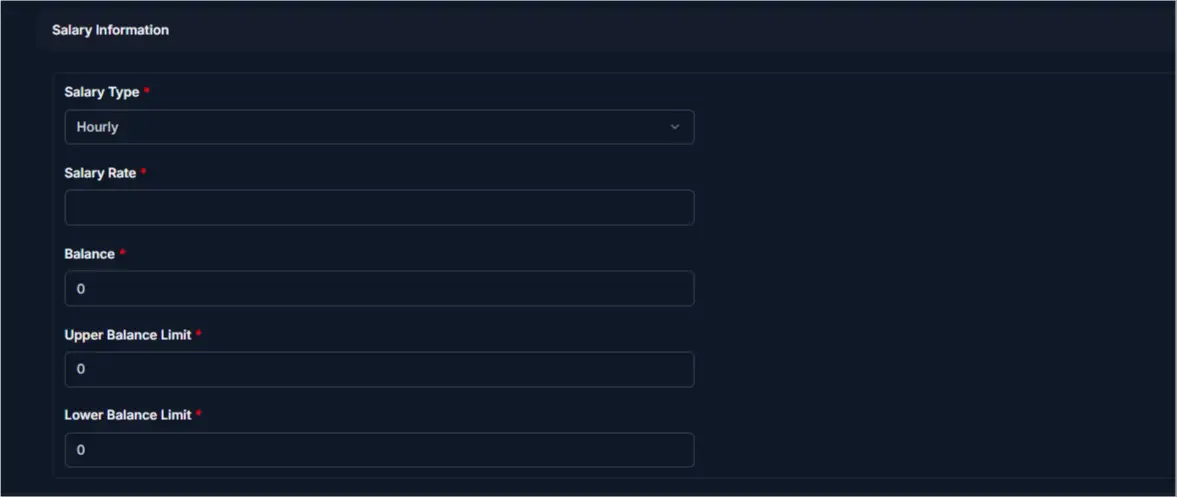
| Step | Field | What to Do | Description |
|---|---|---|---|
| 1 | Salary Type | Select the salary type | Controls how salary is calculated |
| 2 | Salary Rate | Enter the rate | Base amount used for salary calculation |
| 3 | Balance | Enter the current balance | Current salary-related balance |
| 4 | Upper Balance Limit | Set the maximum limit | Highest allowed balance |
| 5 | Lower Balance Limit | Set the minimum limit | Lowest allowed balance |
Required Fields
Fields marked with a red star (*) are mandatory.
Saving the Employee
After completing all sections:
- Click Save to create the employee
- Click Save and add another to continue adding more employees
- Click Save and continue editing to save and stay on the page
Tips
- Verify the Phone Number before enabling SMS notifications.
- Upload clear NID images so the record is easy to verify later.
- Leave End Date empty if the employee is still active.
- Review Salary Type and Salary Rate carefully before saving, because they affect payroll calculations.
Related Pages
- Edit Employee — Update an existing employee record
- Employee Detail — Review the full employee profile
- Record Attendance — Track employee attendance
- Generate Salary — Create salary records for the employee
- Create Payout — Record employee payout transactions