Vouchers Overview
Summary
The Vouchers page lets you review all voucher records, check their status, and open individual vouchers for more detail or editing. Use this section to track non-invoice financial entries and confirm which vouchers are active, disabled, or deleted.
When to use this page
- Review all voucher records in one place
- Find a voucher by vendor, reference, or date
- Open a voucher for details or updates
- Check voucher status before reconciliation
How to access this page
- From the sidebar, go to Trade Management → Vouchers.
- The list page shows vouchers grouped by Active, Disabled, and Deleted.
- Select a record to open the voucher detail page.
Page sections
Voucher List
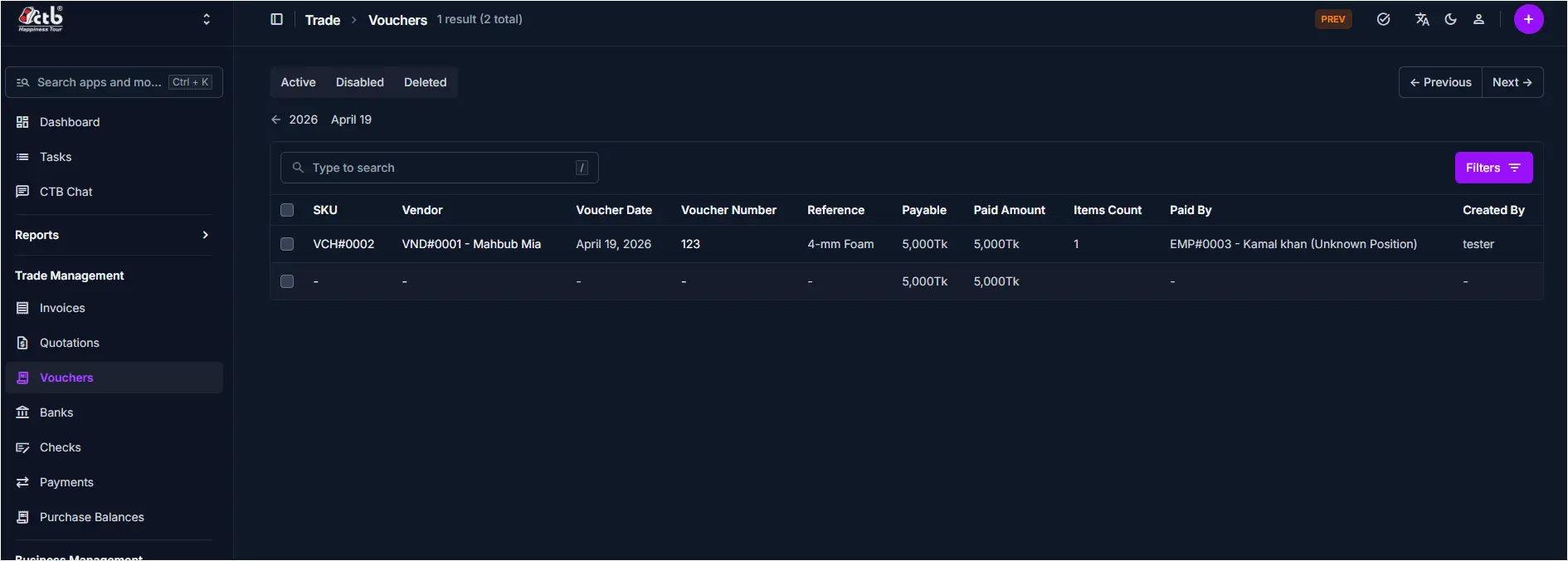
The main list displays each voucher record on a single page.
Key columns include:
- SKU — Internal reference for the voucher
- Vendor — Linked vendor name and code
- Voucher Date — Date the voucher was created or recorded
- Voucher Number — Unique number for the voucher
- Reference — Description or note for the voucher
- Payable — Amount due on the voucher
- Paid Amount — Amount already paid
- Items Count — Number of items included in the voucher
- Paid By — Employee who processed the payment
- Created By — User who created the voucher
Search and filters
- Use the search field to find vouchers by vendor, number, or reference.
- Use the Active / Disabled / Deleted tabs to filter records by status.
- Use the Filters button to narrow results by additional values.
Best practices
- Use clear references so finance staff can find vouchers quickly.
- Check the voucher status before editing, as some may become read-only.
- If a voucher is missing, confirm it was saved in the correct module.
Related Pages
- Add Voucher — Record a new voucher entry
- Voucher Detail — Review or update voucher information
- Banks Overview — Manage bank accounts and transactions
- Payments Overview — Track payment records and statuses