Add Payment
Use this page to record a payment received from a client or sent to a vendor. Payments track cash flow, invoice settlements, bank checks, and financial transactions within CTB Admin.
Summary
Use this page to capture incoming and outgoing payments with references, dates, and optional check linkage. Accurate payment entries keep balances and reconciliation reports reliable.
When to use this page
- Recording a payment received from a client for an invoice
- Recording a payment sent to a vendor for purchases
- Applying payments using a bank check
- Creating payment records for bank reconciliation
- Documenting discounts or partial payments
How to access this page
From the sidebar, go to Trade → Payments. On the Payments List page, click the purple (+) icon in the top-right corner.
The system opens the Add Payment Page.
Step-by-step instructions
- Open Trade -> Payments and click the add icon.
- Enter core payment details in Payment Information.
- Select client or vendor and optionally link a check.
- Add notes for reconciliation or internal context.
- Click the appropriate save action to create the payment.
Field reference
- Status - Payment lifecycle state, such as Pending or Completed.
- Type - Direction of payment: Receive or Send.
- Reference - External reference number used for tracing transactions.
- Amount - Payment value recorded in system currency.
- Check - Optional check linkage that affects both party and check balances.
- Client/Vendor - Counterparty associated with the payment record.
Payment Information
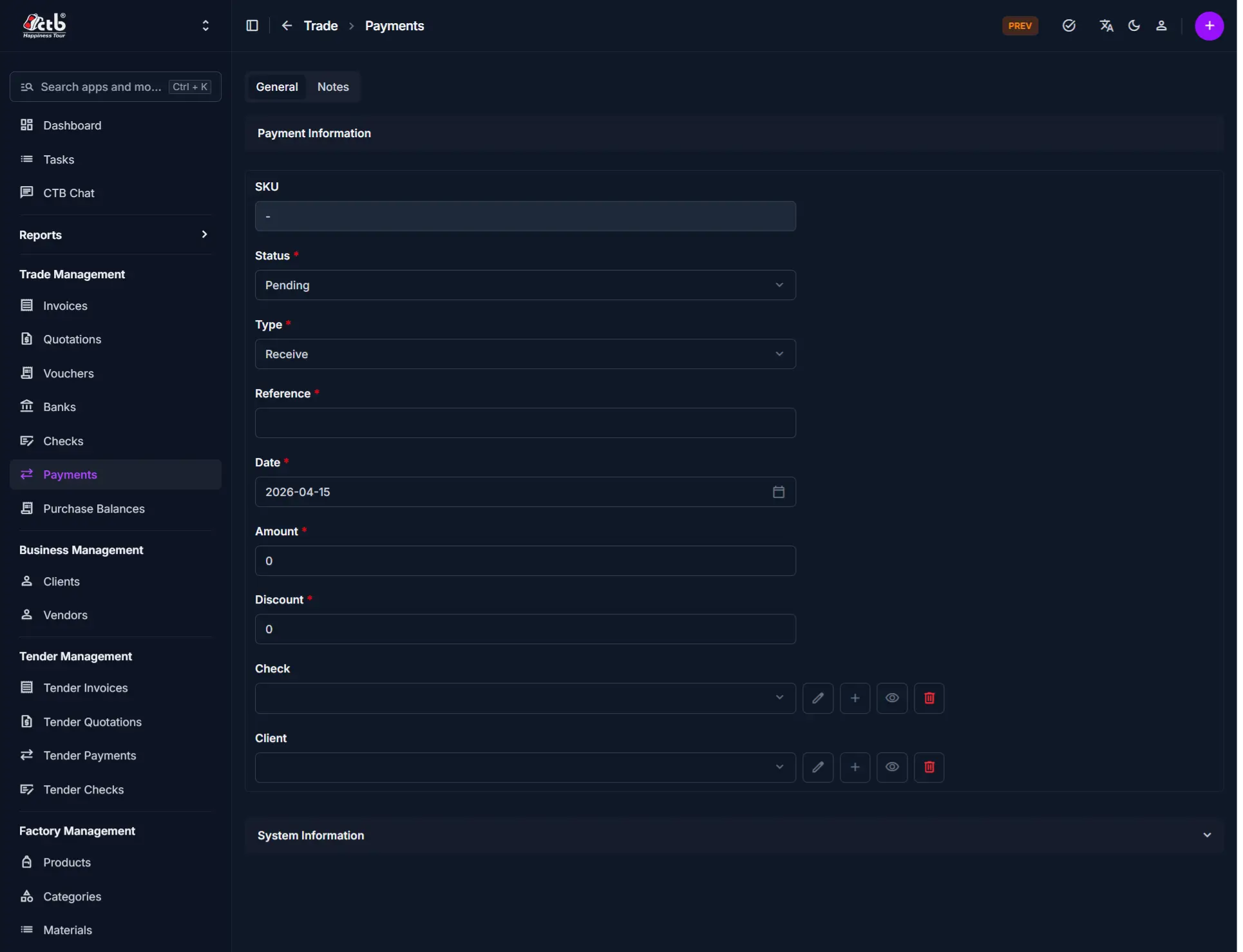
Fill in the following fields:
| Step | Field | What to Do | Description |
|---|---|---|---|
| 1 | SKU | Auto-generated | Unique identifier for the payment (read-only) |
| 2 | Status | Select status | Current payment state (Pending, Completed, etc.) |
| 3 | Type | Select type | Receive (from client) or Send (to vendor) |
| 4 | Reference | Enter reference | Reference number or transaction ID |
| 5 | Date | Select date | Date the payment was made or received |
| 6 | Amount | Enter amount | Total payment amount in the default currency |
| 7 | Discount | Enter discount | Any discount or adjustment applied (optional) |
Required Fields
Fields marked with a red star (*) are mandatory.
Check and Client Selection
| Step | Field | What to Do | Description |
|---|---|---|---|
| 1 | Check | Click to select | Opens a dropdown of all available checks (optional). Selecting one links the payment to check. |
| 2 | Client | Select client/vendor | The party involved in the payment (client or vendor) |
Note
When you select a Check, the payment amount will be deducted from both the client/vendor balance AND the check balance. If you leave the Check field empty, the payment amount will reduce only the client/vendor balance.
Notes
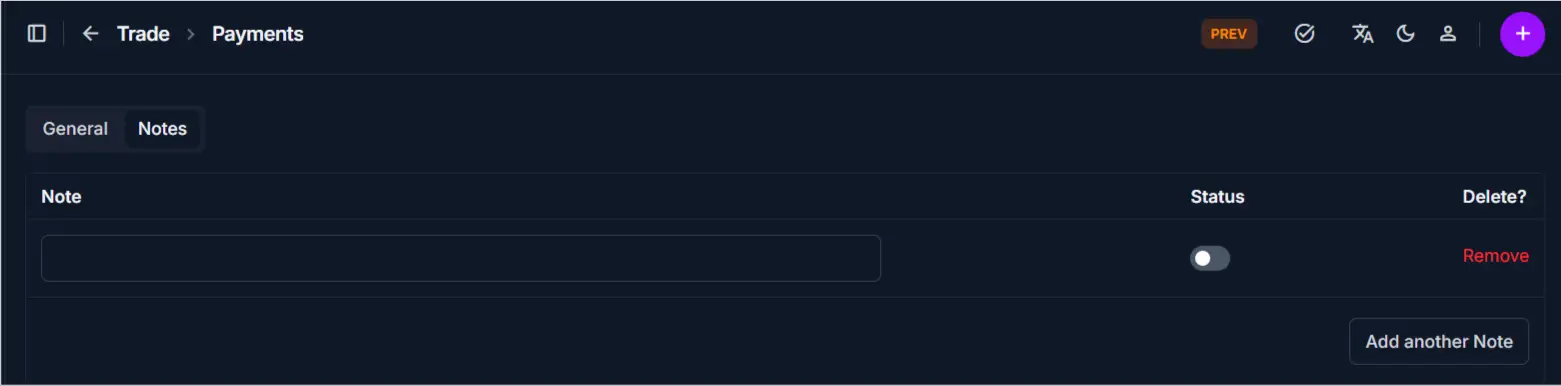
Add optional notes or internal comments related to the payment:
| Step | Field | What to Do | Description |
|---|---|---|---|
| 1 | Notes | Enter text | Add internal notes, remarks, or special conditions for payment |
Tip
Use the Notes field to document additional details such as payment terms, special instructions, or reasons for discounts applied to the payment.
Saving the Payment
After completing all sections:
- Click Save to create the payment record
- Click Save and continue editing to save and stay on the page
- Click Save and add another to save and create another payment immediately
The payment is now recorded in the system.
Tips
- Check selection is optional — Leave the Check field empty for non-check payments; only select a check if the payment is from a bank check
- Check reduces two balances — When a check is selected, the payment amount reduces both the client/vendor balance and the check balance
- No check reduces client balance only — When the Check field is empty, only the client/vendor balance is reduced
- Type matters — Use Receive for customer payments and Send for vendor payments to ensure correct reporting
- Reference tracking — Enter a meaningful reference (check number, transaction ID, or invoice number) for easy reconciliation
- Dates for reconciliation — Always set the Date field to match the actual payment date to ensure accurate bank reconciliation
- Discount field — Use only for actual discounts or adjustments, not for separate transactions
Related Pages
- Payments Overview — View all payments
- Payment Detail — View payment details and history
- Checks Overview — Manage bank checks
- Add Check — Create a new bank check
- Invoices Overview — Manage invoices and sales records