Edit Product
Use this page to update an existing product's information in CTB Admin. This includes product details, materials composition, pricing, and inventory settings.
When to use this page
- Updating product name, category, or description
- Changing selling rate or production wages
- Adding or removing materials from product composition
- Adjusting stock levels or restock thresholds
- Enabling or disabling a product from sales
- Modifying cost calculations
How to access this page
- Go to Factory → Products from the sidebar
- On the Products List page, select a product
- Click on the Photo or SKU or Product Name
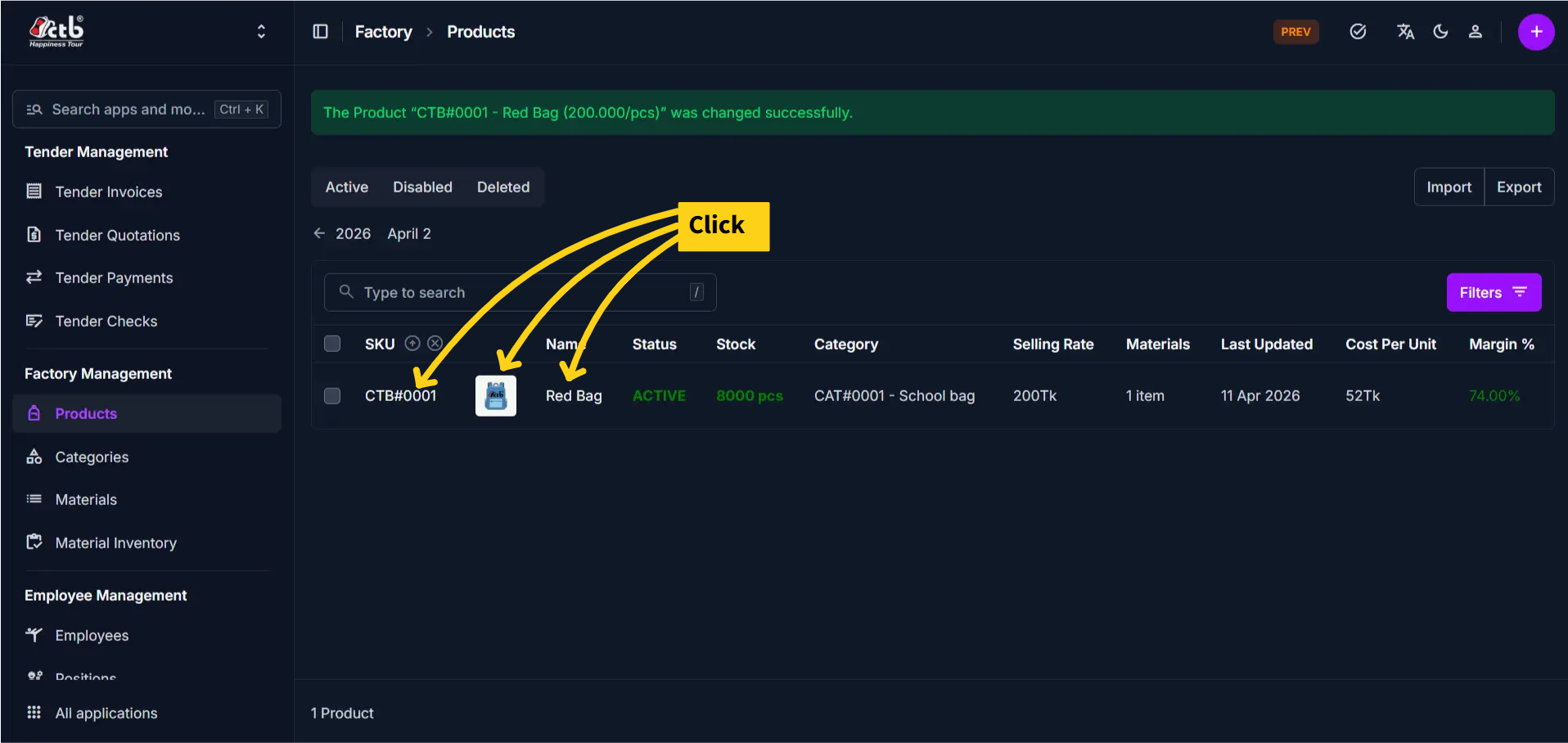
The system opens the Edit Product Page.
General Information
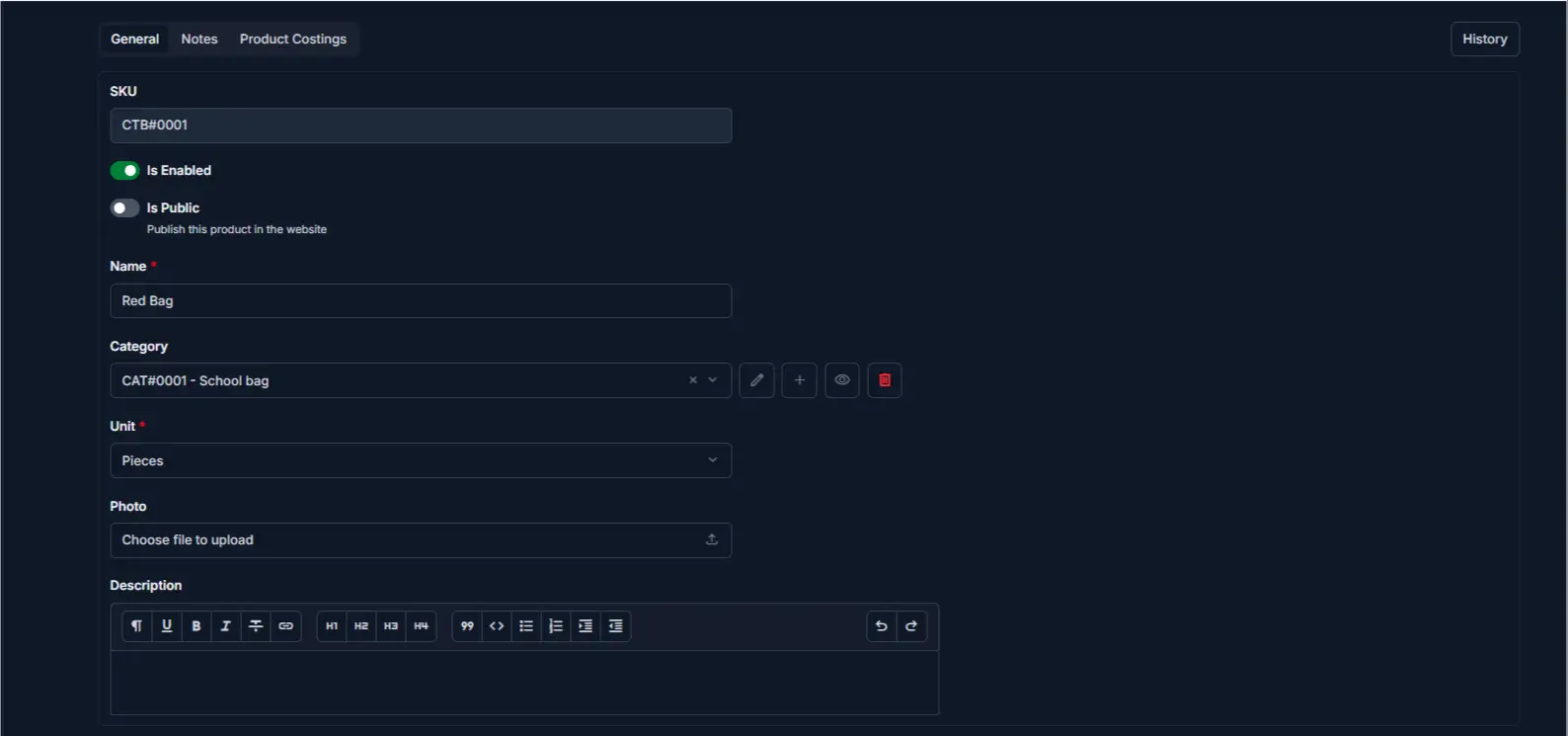
Update the following fields as needed:
| Field | What you can change | Notes |
|---|---|---|
| SKU | Read-only | Cannot be changed after creation |
| Is Enabled | Toggle ON/OFF | Disabling prevents use in new invoices |
| Is Public | Toggle ON/OFF | Controls visibility on website |
| Name | Edit | Updates how product appears in system |
| Category | Edit | Used for organization and reporting |
| Unit | Edit with caution | Changing causes calculation issues in invoices |
| Photo | Replace | Upload a new product image |
| Description | Edit | Optional notes or additional details |
Warning
Changing the Unit after invoices are created can cause calculation errors. Avoid unless necessary.
Pricing and Costing Information
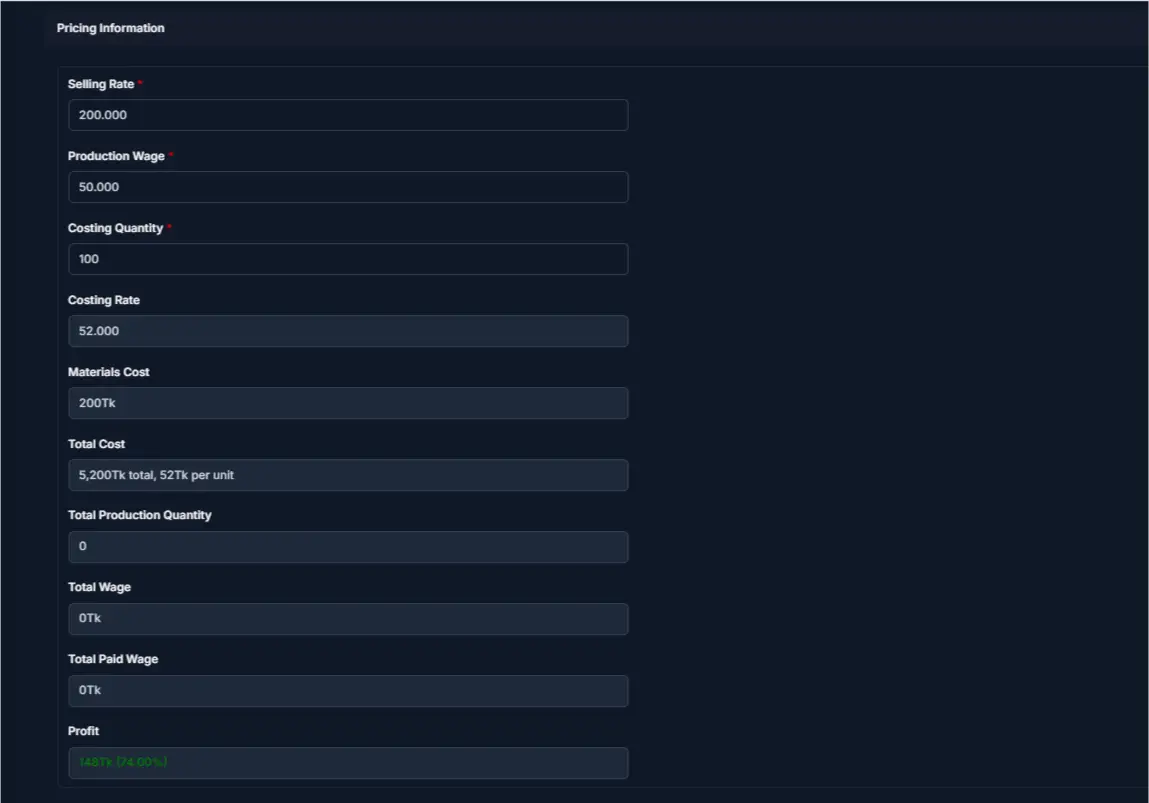
| Field | What you can change | Notes |
|---|---|---|
| Selling Rate | Edit | Price per unit charged to clients |
| Production Wage | Edit | Wage cost per unit for production labor |
| Costing Quantity | Edit | Quantity for which costs are calculated |
| Costing Rate | Edit or auto | Cost per unit (system may auto-calculate) |
| Materials Cost | Auto-calculated | Sum of all materials used in product |
| Total Cost | Auto-calculated | Costing Rate + Materials Cost |
| Profit | Auto-calculated | Selling Rate minus Total Cost |
Note
Materials Cost, Total Cost, and Profit are automatically calculated. Do not edit these fields directly.
Product Costings (Materials)
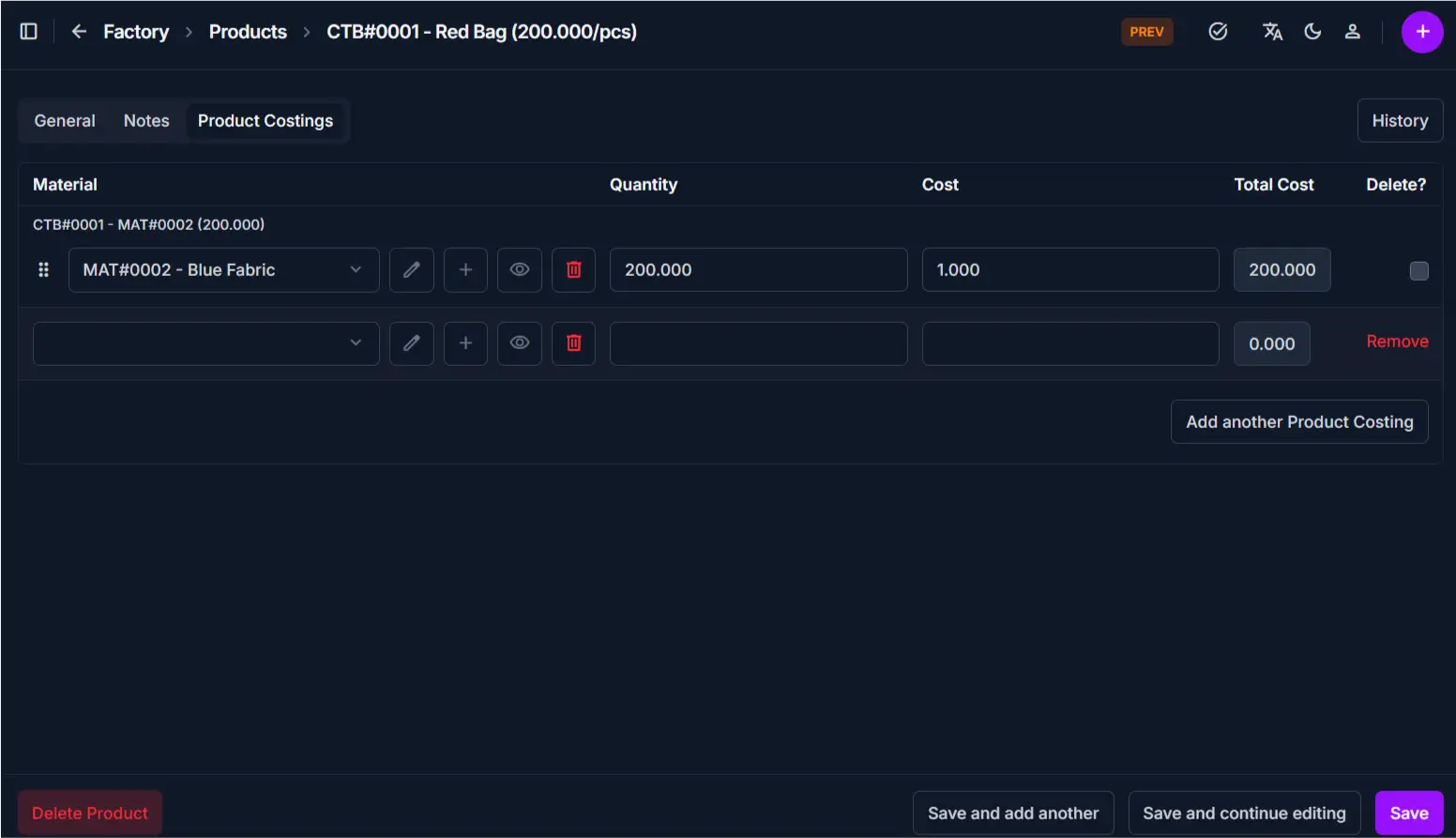
This tab defines which materials are used to manufacture this product:
| Column | What you can change | Notes |
|---|---|---|
| Material | Select | Choose which material to use |
| Quantity | Edit | How much per unit is used |
| Cost | View only | Cost per unit of the material |
| Total Cost | Auto-calculated | Quantity × Material cost |
| Delete? | Check to remove | Remove material from this product |
Click Add another Product Costing to add more materials to the composition.
Stock and Inventory
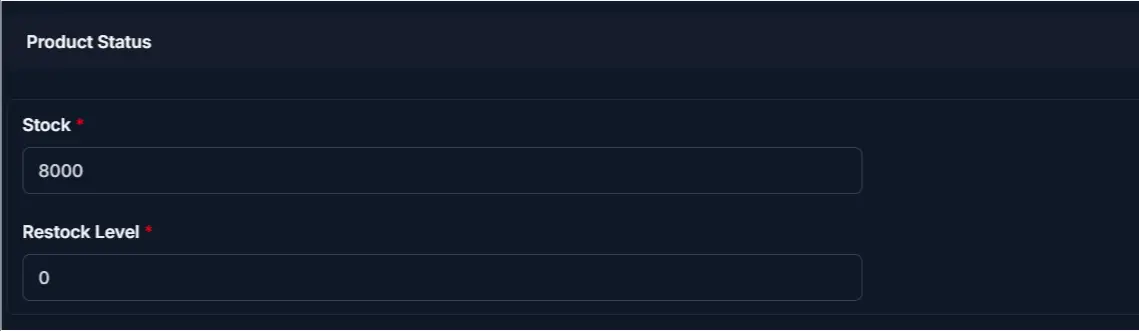
| Field | What you can change | Notes |
|---|---|---|
| Product Status | View only | Shows Active, Disabled, or Deleted state |
| Stock | Edit with care | Current available quantity |
| Restock Level | Edit | Minimum stock before reorder is needed |
Warning
Editing Stock manually should be avoided. Use Inventory In or Inventory Out transactions to maintain a complete audit trail.
Saving Changes
After updating the required fields:
- Click Save to apply changes
- Changes are immediately reflected across the system
- Pricing and costing calculations update automatically
Tips and Common Issues
- The SKU field cannot be changed after a product is created
- Disabling a product prevents it from being used in new invoices
- When you add or remove materials, click Save immediately to recalculate Total Cost and Profit
- Avoid manual Stock edits — use proper inventory transactions instead
- If Total Cost exceeds Selling Rate, profit becomes negative — review pricing regularly
- Every change to this product is logged in the History tab
Product History
Click the History button in the top-right corner to see all changes made to this product, including who made the change, when, and what was modified.
Related Pages
- Add Product — Create a new product
- Products Overview — View and search all products
- Materials — Manage materials used in products
- Categories — Organize and manage product categories
- Product Costings — View product costing details