Purchase Balances Overview
The Purchase Balances module tracks financial transactions and balances between the company and its employees. A purchase balance records advances, loans, or purchases made by employees on company account. Use this page to view all employee purchase balances, add new entries, and manage outstanding obligations.
What you can do in this module
- Record employee advances or loans — create new purchase balance entries when money is given to or owed by an employee.
- Adjust existing balances — update or correct employee balance records as payments are made or adjustments occur.
- Search and filter balances — quickly find specific employees or date ranges using the search and filter tools.
- View balance details — access complete information about each purchase balance entry including notes and creation information.
- Track payment status — monitor which balances have been settled or remain outstanding.
How to access this page
From the sidebar, go to Employee Management → Purchase Balances.
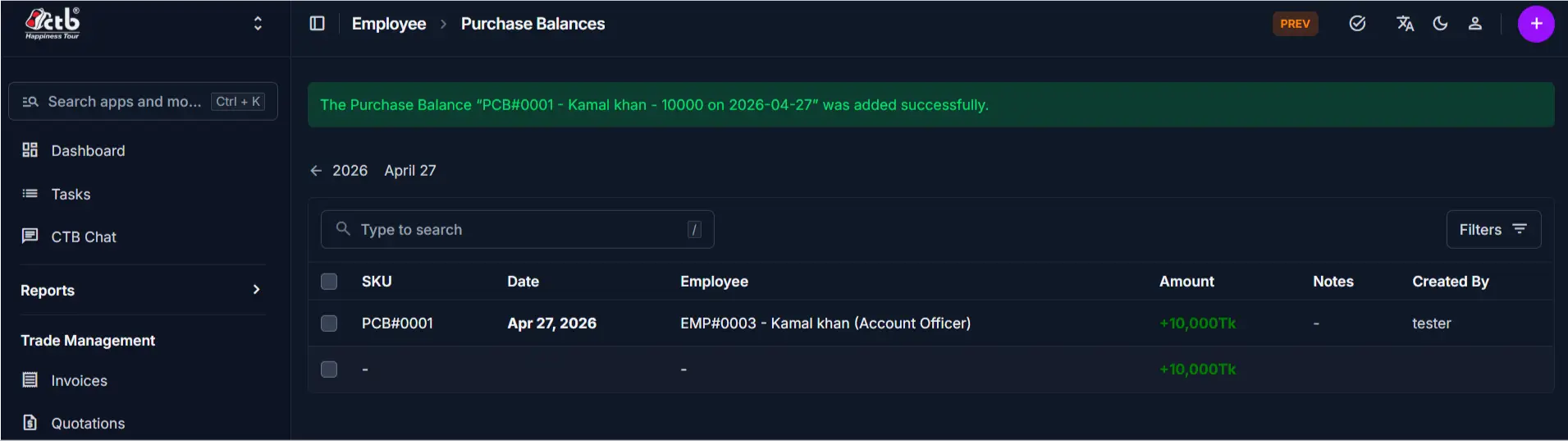
The system opens the Purchase Balances List page where all recorded balances are displayed.
List Page Columns and Fields
The Purchase Balances list displays the following information for each entry:
| Column | Description |
|---|---|
| SKU | System-generated unique identifier for this purchase balance (e.g., PCB#0001) |
| Date | Date the purchase balance was recorded or adjusted |
| Employee | Name and ID of the employee associated with this balance |
| Amount | The balance amount (positive = owed by employee; negative = owed to employee) |
| Notes | Internal notes or reason for the balance entry |
| Created By | Username of the admin or manager who created this record |
Search and Filter
Use the search and filter options to quickly locate specific purchase balances:
- Search box — Type to search by employee name, SKU, or notes
- Filters — Click Filters to narrow results by date range, employee, or amount
- Calendar picker — Click the date arrows to navigate to a specific date
List Actions
From the Purchase Balances List page:
- Create new balance — Click the purple (+) icon in the top-right corner to add a new purchase balance entry
- View details — Click on any row to open the full details of that purchase balance
- Edit or delete — Open a balance record to edit or delete it (if permitted by your role)
Tips
- Amount convention — Positive amounts (e.g., +10,000tk) mean the employee owes the company; negative amounts mean the company owes the employee
- Search by employee name — Use the search box to quickly find an employee's balance without scrolling
- Notes field is useful — Always add notes explaining why a balance was adjusted (e.g., "Advance for travel" or "Salary deduction")
- Date filters help with reporting — Use date filters when you need balances for a specific payroll period or month
- Check before creating duplicates — Search for an employee first to avoid accidentally creating duplicate balance entries
- Integration with payroll — Purchase balance adjustments may be reflected in employee salary and payout calculations
Related Pages
- Add Purchase Balance — Create a new purchase balance entry for an employee
- Purchase Balance Detail — View full details and edit a specific purchase balance record
- Employees — Manage employee records linked to purchase balances
- Salary Overview — Track how purchase balances affect salary calculations
- Payouts — View payout records that may be related to purchase balance settlements