Audit Log
Summary
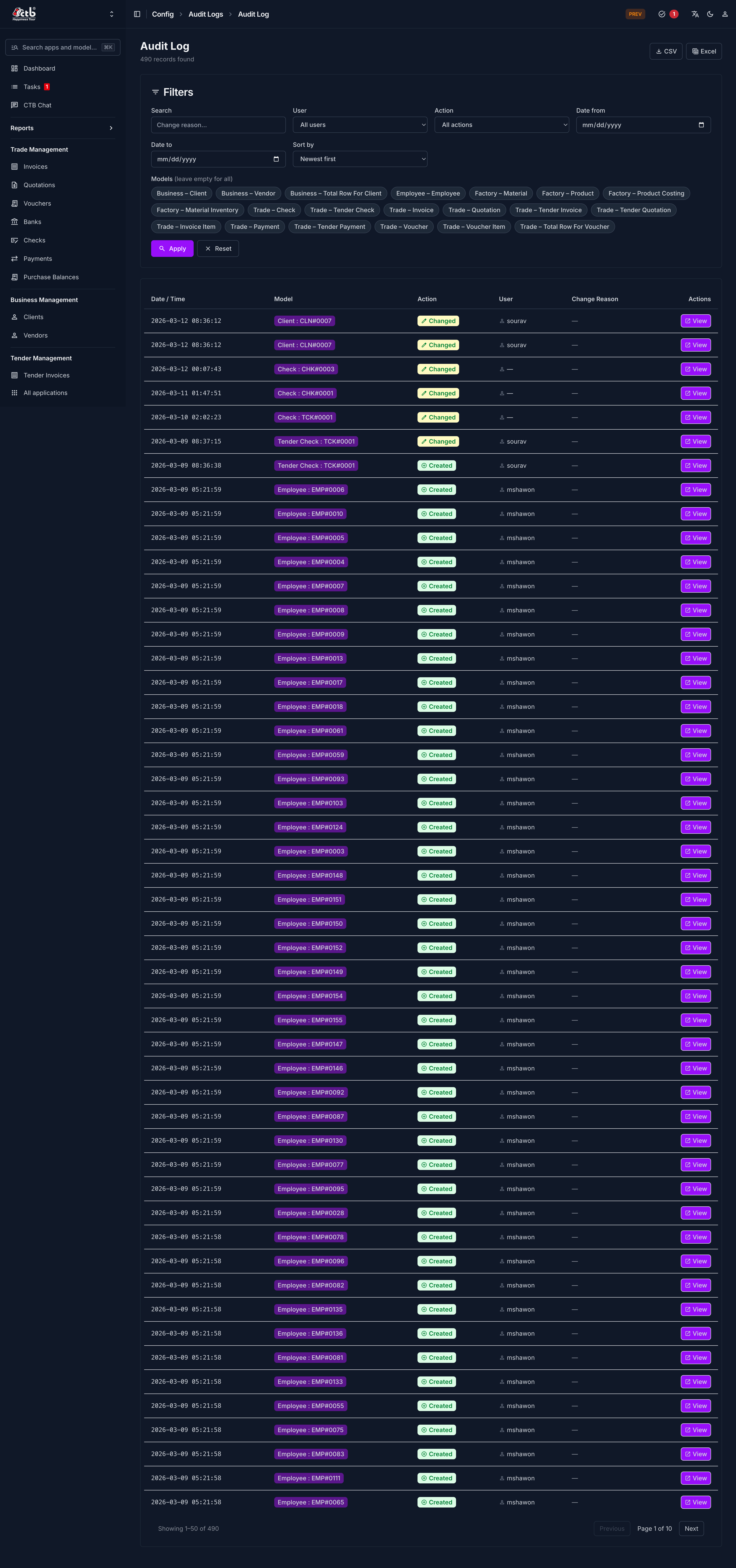
Use this page to review who changed data in CTB Admin, what was changed, and when the action happened. Audit logs help you verify activity, investigate unexpected changes, and support internal control checks.
When to use this page
- When you need to verify who created, edited, or deleted a record.
- When you investigate incorrect values in business, factory, trade, or employee data.
- When management asks for a history of admin activity.
- When you need evidence for compliance, internal review, or dispute resolution.
How to access this page
From the left sidebar menu, go to Audit Log. It appears as the last item in the menu.
Prerequisites
- You have permission to view audit records.
- Users have already performed actions in the system, so logs exist to review.
Step-by-step instructions
- Open Audit Log from the left sidebar.
- Review the most recent entries first to understand current activity.
- Identify the key details for each row: who performed the action, what object was affected, and when it occurred.
- Use available search or filter controls on the page to narrow records by user, record type, or date range.
- Open a log entry if details are available, then compare old and new values to confirm exactly what changed.
- Cross-check the affected record in its original module (for example Clients, Invoices, or Employees) if follow-up is needed.
- Record the relevant log details before escalating to management or operations.
Field reference
- User - The account that performed the action.
- Action - The type of operation, such as add, change, or delete.
- Object - The record or entity that was affected.
- Module/App - The area of CTB Admin where the change happened.
- Timestamp - Date and time when the action was saved.
- Change Details - Before/after values or a summary of the edited fields.
- IP/Source (if available) - Request origin information useful for security checks.
This page reads audit trail data for admin activity. Use it as the system source when checking history related to business records such as clients, invoices, payments, checks, and employee entries.
Tips and common issues
- Check system date and time settings if log times look inconsistent.
- Filter by a short date range first when there are many records.
- Use both User and Object together to find the correct event faster.
- If no entries appear, confirm that the action was actually saved and that your account has viewing permission.
- Export or screenshot important entries during incident review so your team has a fixed reference.
Related pages
- See User Management to control who can access and change data.
- See Maintenance Mode before performing controlled system updates.
- See App Settings for global behavior that may affect user activity.