Salary Detail
Use this page to view and manage a salary record after it has been generated. The salary detail page displays all components of a salary entry — the assigned employee, salary period, salary components, payment details, and related records. You can update salary components, mark the salary as paid, and review linked records from this page.
When to use Salary Detail
- Reviewing a complete salary record with all components and calculations
- Updating salary components such as bonus, deductions, or overtime
- Marking a salary as paid and recording the payment date
- Reviewing related records linked to this salary entry
- Verifying salary information before processing payroll
How to access Salary Detail
From the sidebar, go to Employee Management → Salaries. On the Salaries List page, click on any salary SKU to open the Salary Detail page.
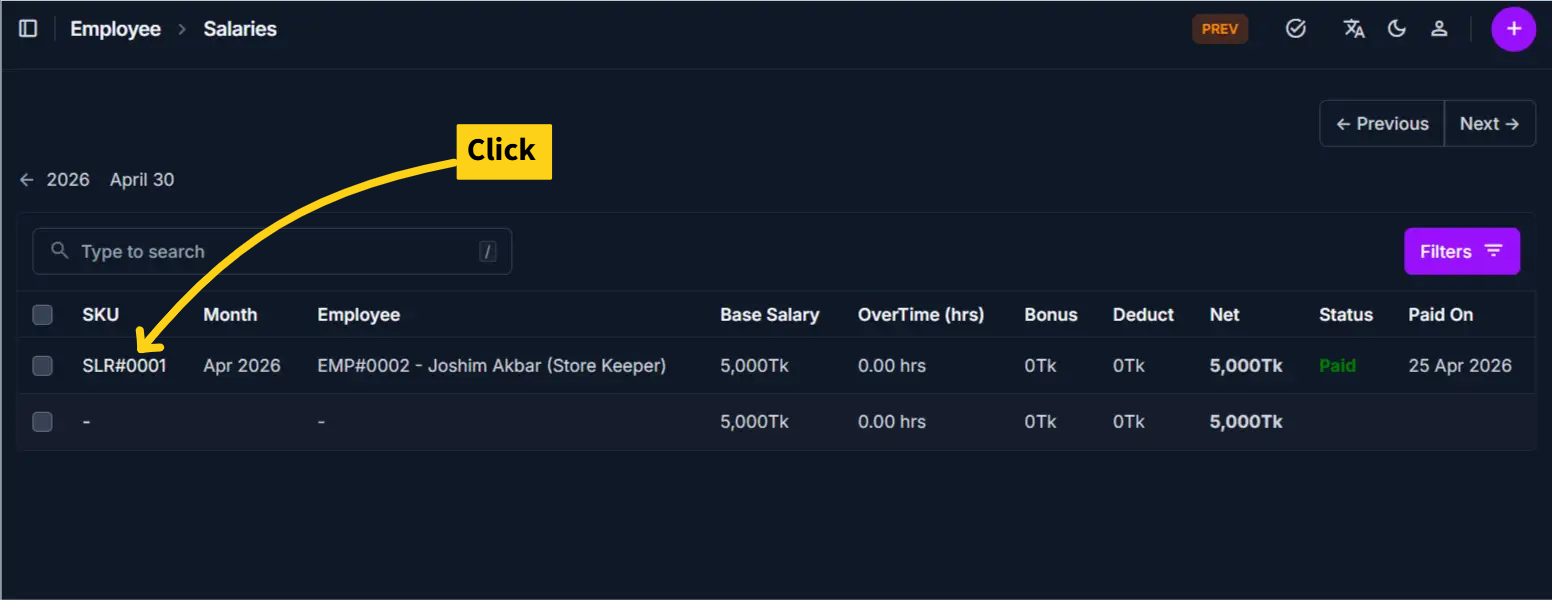
Salaries List Page
The Salaries List displays all salary records across employees with the following columns:
| Column | Description |
|---|---|
| SKU | Unique identifier for the salary record; clickable link to detail page |
| Month | The salary period this record covers (e.g., Apr 2026) |
| Employee | The employee this salary was generated for |
| Base Salary | The base salary amount before adjustments |
| Overtime (hrs) | Total overtime hours recorded for this period |
| Bonus | Bonus amount added to the salary |
| Deduct | Deduction amount subtracted from the salary |
| Net | Final payable amount after all adjustments (shown in bold) |
| Status | Payment status — Paid (green) or blank if unpaid |
| Paid On | The date the salary payment was made |
Use the ← Previous and Next → buttons to navigate between salary periods, and the Filters button to narrow results by employee, month, or status.
Page Overview
The Salary Detail page includes an action button at the top-right:
| Button | Action | Available When |
|---|---|---|
| History | View past changes and modifications to the record | Always visible |
General Information
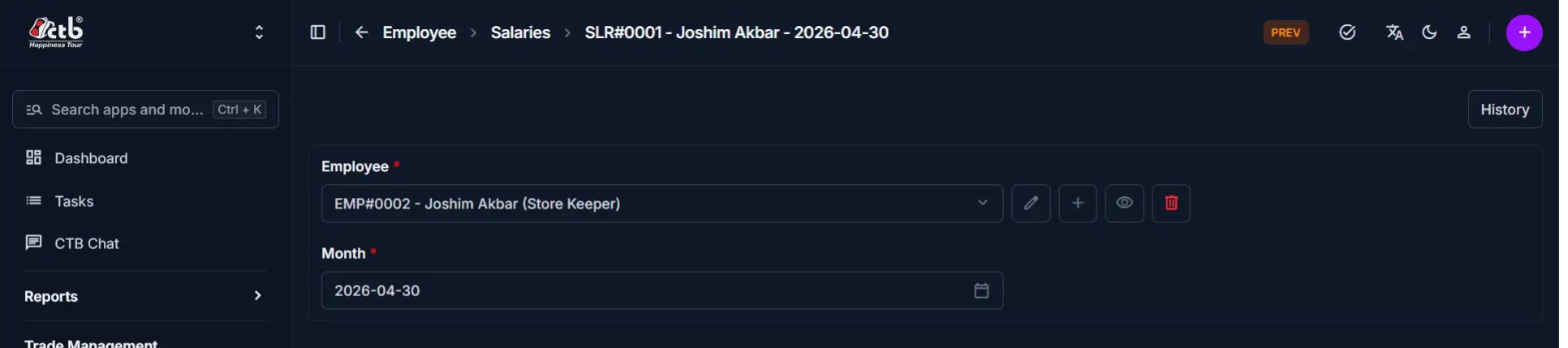
The top section shows which employee and period this salary covers:
| Field | Description |
|---|---|
| Employee | The employee this salary record is assigned to |
| Month | The month and year this salary record covers |
Required Fields
Fields marked with a red star (*) are mandatory.
Salary Components
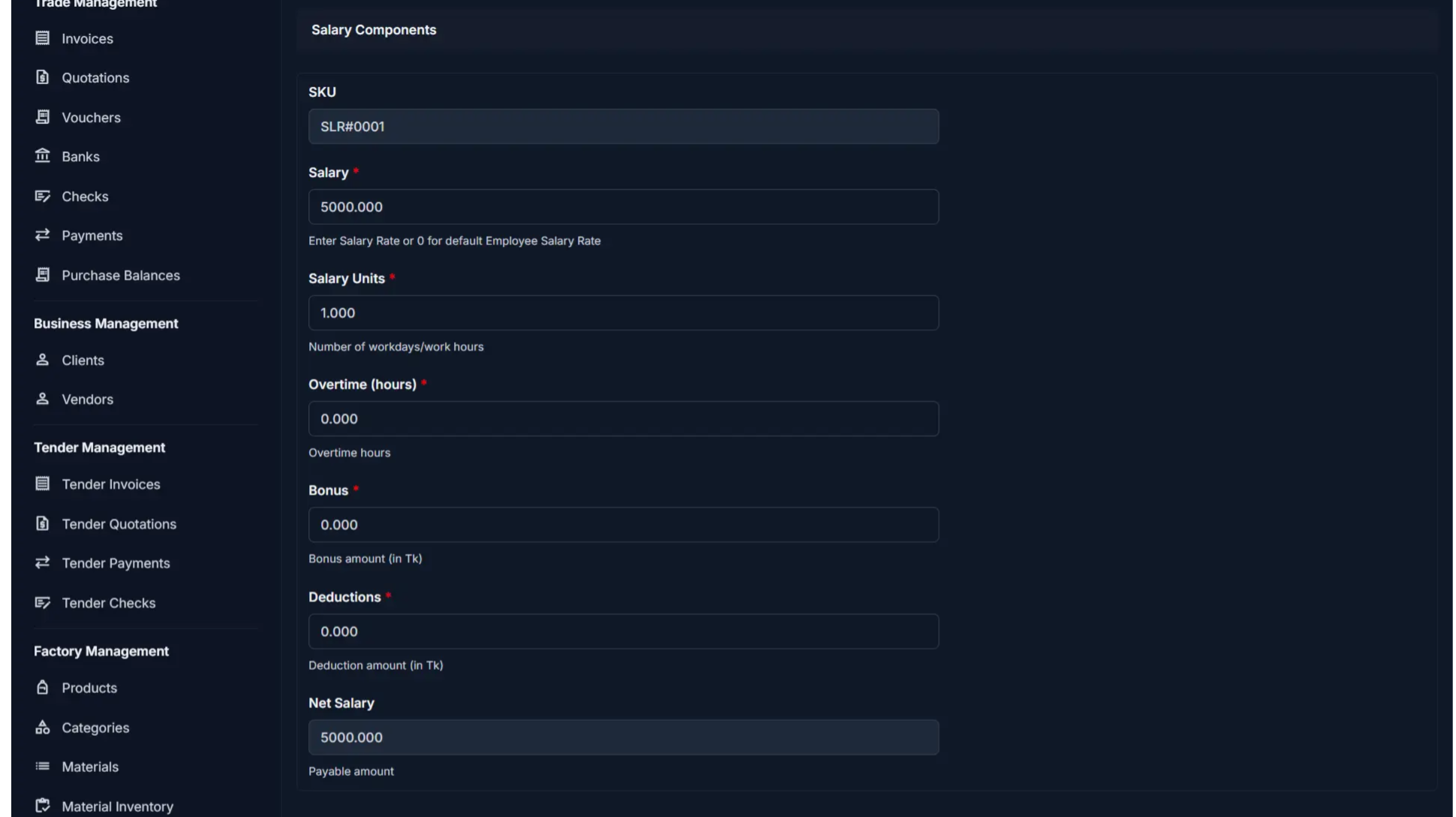
This section displays the full salary breakdown:
| Field | Description |
|---|---|
| SKU | Auto-generated unique identifier for this salary record (read-only) |
| Salary | Salary rate for this period; 0 uses the employee's default salary rate |
| Salary Units | Number of workdays or work hours used to calculate the salary |
| Overtime (hours) | Number of overtime hours worked during this period |
| Bonus | Bonus amount in Tk added to the base salary |
| Deductions | Deduction amount in Tk subtracted from the base salary |
| Net Salary | Final payable amount — calculated automatically (read-only) |
Net Salary Calculation
Net Salary is calculated automatically as: (Salary × Salary Units) + Overtime + Bonus − Deductions. It updates in real time whenever any component is changed.
Tip
Set Salary to 0 to apply the default salary rate configured on the employee's profile.
Payment Details
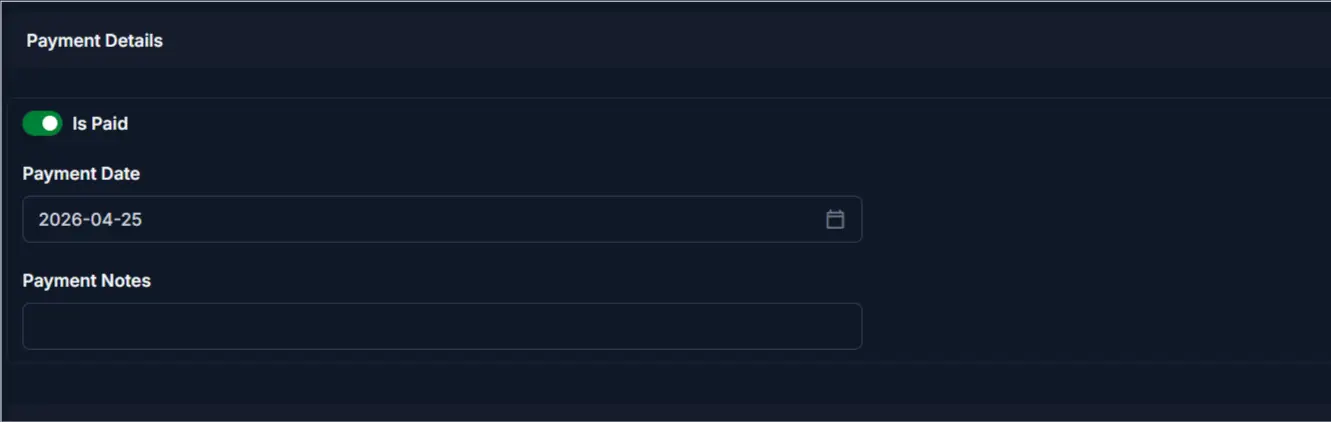
This section records the payment status for this salary:
| Field | Description |
|---|---|
| Is Paid | Toggle to mark the salary as paid or unpaid |
| Payment Date | The date the salary payment was made (required when Is Paid is ON) |
| Payment Notes | Optional notes about the payment method, reference, or remarks |
Payment Fields Visibility
Payment Date and Payment Notes are active when Is Paid is toggled on. Keep Is Paid off if the salary is still outstanding.
Related Records
The Related Records section at the bottom is a collapsible section that displays any records linked to this salary entry, such as attendance logs or payout references.
Info
Click the Related Records header to expand and review all linked data for this salary record.
Saving Changes
After making edits:
| Button | Action |
|---|---|
| Save | Save changes and stay on the detail page |
| Save and continue editing | Save and remain in edit mode |
| Save and add another | Save and immediately open a new blank salary form |
Deleting a Salary Record
A Delete Salary button is available at the bottom-left of the detail page.
Restricted Action
Deleting a salary record is permanent. Only delete records that were created in error and have not been linked to any payout or financial transaction. Once a salary has been marked as Paid or linked to related records, deletion may not be permitted. Contact your system administrator if a linked salary record needs to be removed.
Tips and Common Issues
- Net Salary updates automatically — It recalculates in real time whenever Salary, Salary Units, Overtime, Bonus, or Deductions are changed
- Salary Units represent workdays or hours — Enter the correct number based on the employee's salary type (Monthly or Hourly)
- Default salary applies when Salary is 0 — The system uses the rate set on the employee's profile
- Toggle Is Paid only when payment is confirmed — Setting Is Paid without a Payment Date may cause payroll reporting inconsistencies
- Deductions reduce Net Salary — Enter deductions carefully as they directly reduce the employee's final payable amount
- Always save before leaving — Use the Save button at the bottom of the page; unsaved changes will be lost
- History button — Use the History button in the top-right corner to review all changes made to this salary record and who made them
Related Pages
- Salaries Overview — View and manage all salary records
- Generate Salary — Create a new salary record for an employee
- Employee Detail — View the full employee profile and linked salary records
- Wages — Manage production-based wage entries
- Payouts — Process and track salary disbursements
- Attendance — Review attendance records used for salary unit calculation