Add Purchase Balance
Use this page to record or adjust an employee's purchase balance — the amount owed to or by an employee for advances, loans, or purchases made on behalf of the business. Purchase balances track financial obligations between the company and its employees.
When to use Add Purchase Balance page
- Recording an employee advance or loan
- Adjusting an employee's running balance
- Documenting purchases made by the employee on company account
- Tracking money owed by employees to the company
How to access Add Purchase Balance page
From the sidebar, go to Employee Management → Purchase Balances. On the Purchase Balances List page, click the purple (+) icon in the top-right corner.
The system opens the Add Purchase Balance Page.
General Information
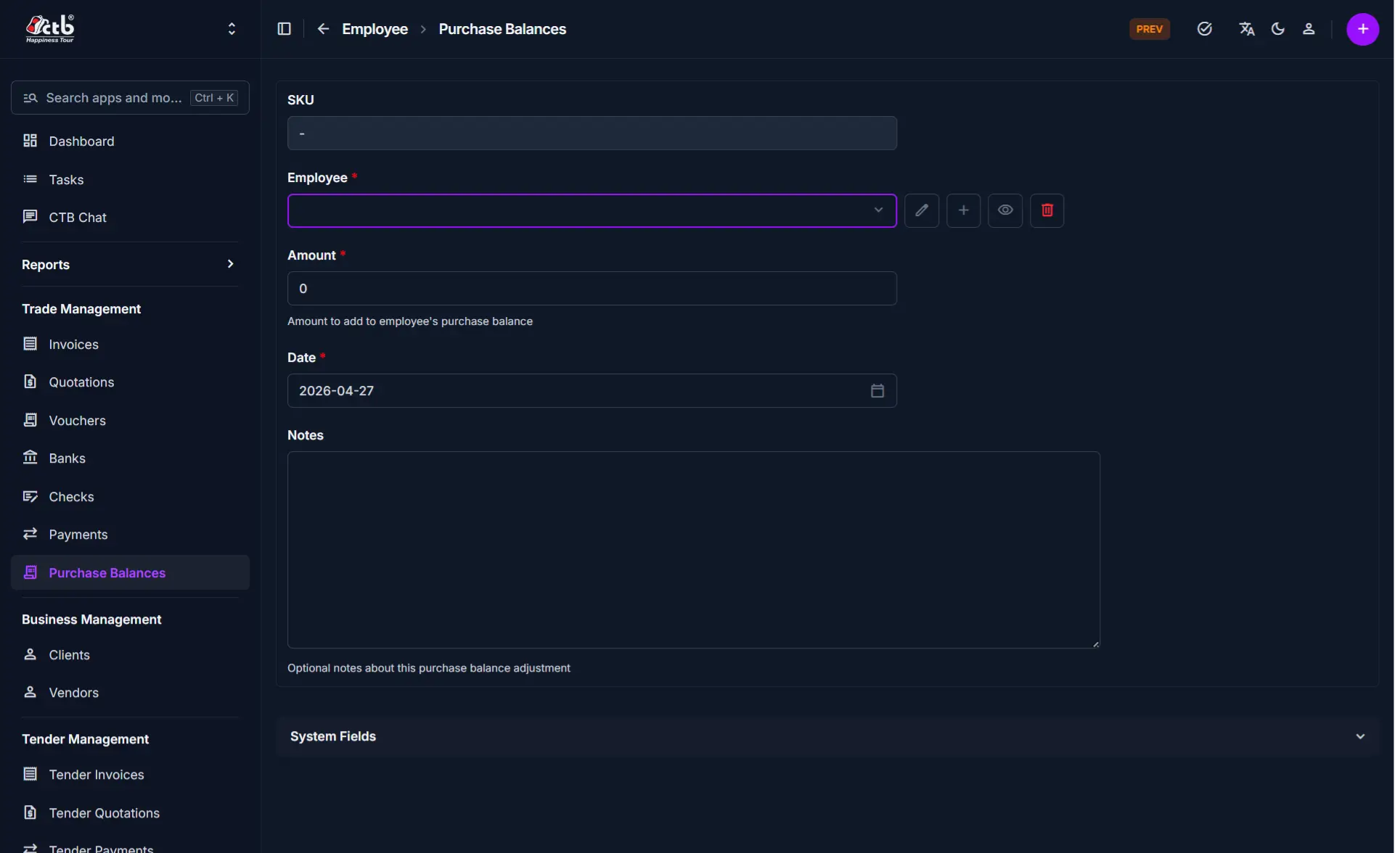 Fill in the following fields on the main form:
| Field | What to Do | Description |
|---|---|---|
| Employee | Select employee | The employee account associated with this purchase balance |
| Amount | Enter amount | The balance amount (positive for amount owed by employee, negative for amount owed to employee) |
| Date | Select date | Date the balance is recorded or adjusted (defaults to today) |
| Notes | Enter text | Optional internal notes or reason for the balance adjustment |
Warning
Employee and Amount fields are mandatory.
System Fields
The following fields are automatically managed by the system:
| Field | Description |
|---|---|
| SKU | Auto-generated unique identifier for this balance |
| Created | Date and time the record was created (read-only) |
| Modified | Date and time of the last update (read-only) |
Saving the Balance
After completing the form:
- Click Save to record the purchase balance
- Click Save and continue editing to save and remain on the page
- Click Save and add another to save and create a new balance immediately
The purchase balance is now recorded and will be reflected in employee reports and payroll calculations.
Tips
- Employee is required — You must select an employee before saving
- Amount determines direction — Positive amounts indicate money owed by the employee; negative amounts indicate money owed to the employee
- Date affects reporting period — The Date field determines which reporting period this balance appears in
- Notes are internal — Notes are visible only to admins and are not included in employee-facing reports
- Adjustments are cumulative — Each new purchase balance record adjusts the employee's running total
- Check existing balance — Review the employee's previous balances before adding a new entry to avoid duplicate entries
Related Pages
- Purchase Balance Detail — View or edit purchase balance details after creation
- Purchase Balance Reports — Analyze purchase balance data and employee financial summaries
- Employee List — View and manage employee records linked to purchase balances
- Payroll and Salary — Track how purchase balance adjustments affect employee compensation