Create Payout
Use this page to issue a payout or advance to an employee and keep the payment recorded for payroll and audit purposes. A payout documents payments to employees outside the regular salary cycle and tracks the employee's payment history.
When to use Create Payout page
- Issuing an advance to an employee
- Recording a salary adjustment or bonus payment
- Processing a one-time employee payment
- Documenting approved non-standard payments
How to access Create Payout page
From the sidebar, go to Employee Management → Payouts. On the Payouts List page, click the purple (+) icon in the top-right corner.
The system opens the Create Payout Page.
Payout Information
Fill in the following fields on the payout form:
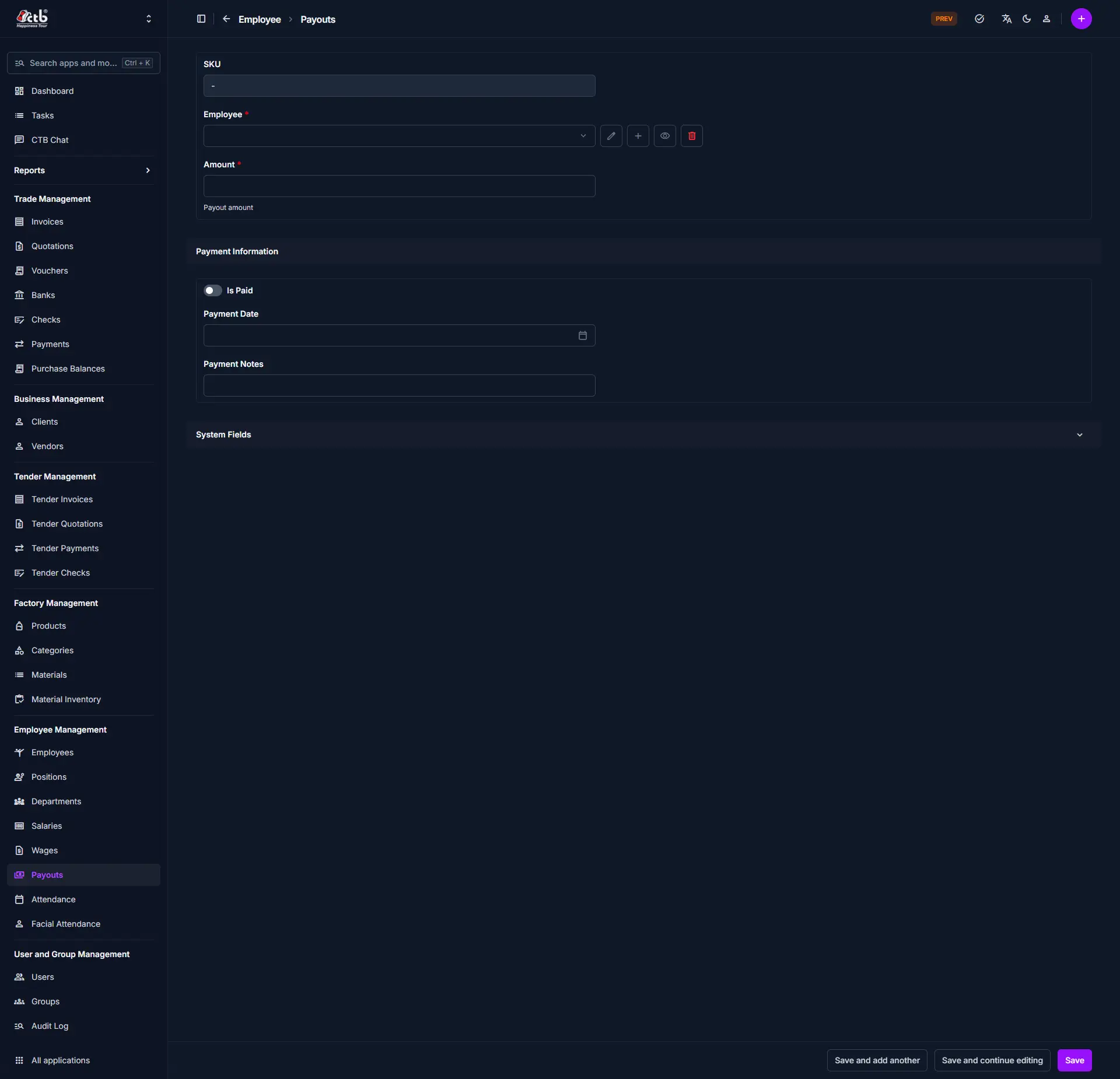
| Step | Field | What to Do | Description |
|---|---|---|---|
| 1 | Employee | Select employee | The staff member receiving the payout |
| 2 | Amount | Enter amount | The payout amount in the system currency |
| 3 | Payable | Auto-calculated | Total payout amount (may include adjustments) |
Warning
Fields marked with a red star (*) are mandatory.
Payment Information
Configure the payment details after entering the payout amount:
| Step | Field | What to Do | Description |
|---|---|---|---|
| 1 | Is Paid | Check if paid | Mark the payout as already paid |
| 2 | Payment Date | Select date | Date when the payout was or will be paid to employee |
Note
Payment Date is important for payroll reconciliation and employee balance tracking.
Payment Notes
Add optional notes or internal comments:
| Step | Field | What to Do | Description |
|---|---|---|---|
| 1 | Note | Enter text | Internal explanation or special comments |
Saving the Payout
After completing all sections:
- Click Save to create the payout
- Click Save and continue editing to save and remain on the page
- Click Save and add another to save and create a new payout immediately
The payout is now recorded and reflected in the employee's account balance.
Tips and common issues
- Employee is required — You must select an employee before saving
- Amount is required — Enter the payout value in the system currency
- Payment Date affects payroll — Ensure the date is correct for accurate payroll reconciliation
- Is Paid determines balance — Check "Is Paid" to mark the payment as completed; leave unchecked for pending payouts
- Add notes for clarity — Use the notes field to explain the reason for the payout (advance, adjustment, bonus, etc.)
- Payable amount is auto-calculated — The system calculates the final payout amount based on the Amount field
Related pages
- Payouts Overview — View all employee payouts and their status
- Salary — Manage regular salary records and payroll
- Employees — Manage employee information and records
- Salary Detail — View employee salary breakdown and history