Manage Task
Use this page to create a new task or update an existing one. Tasks let you assign work to employees with priority levels, due dates, and progress tracking.
Summary
Use this page to create work items and keep track of employee assignments and task completion. Updates here affect task visibility and help managers monitor workload distribution and progress.
When to use this page
- Assigning work to an employee
- Changing task status (To Do, In Progress, Completed)
- Updating task priority or due date
- Adding or modifying task details and notes
- Adjusting task assignments when personnel changes
How to access this page
- Go to Employee → Tasks from the sidebar
- On the Tasks List page, click Task Name to edit existing task
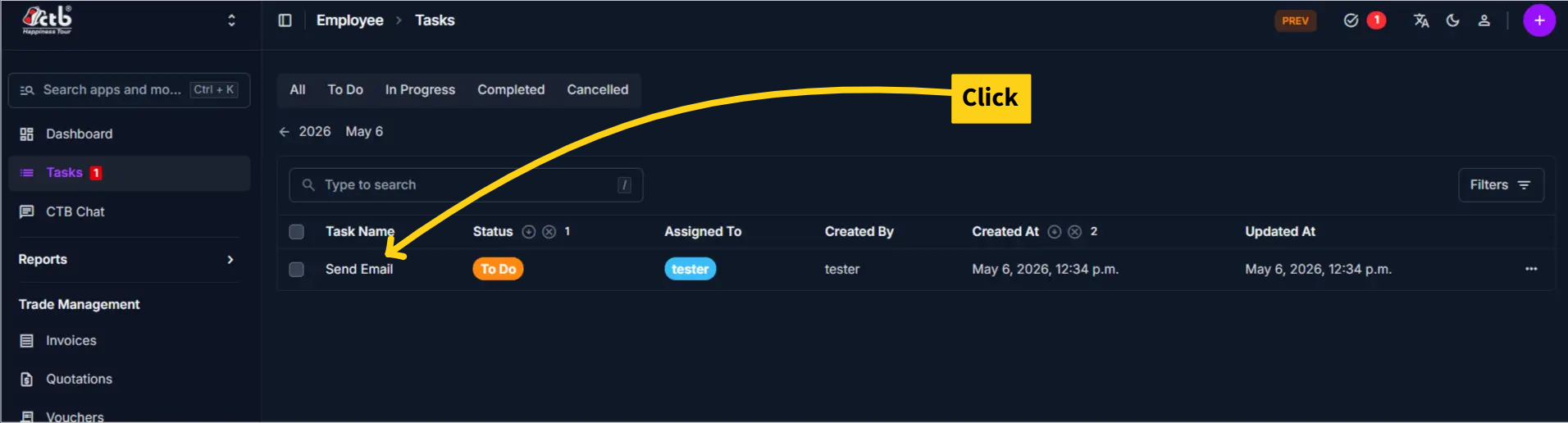
- The system opens the Task Form
Editing an Existing Task
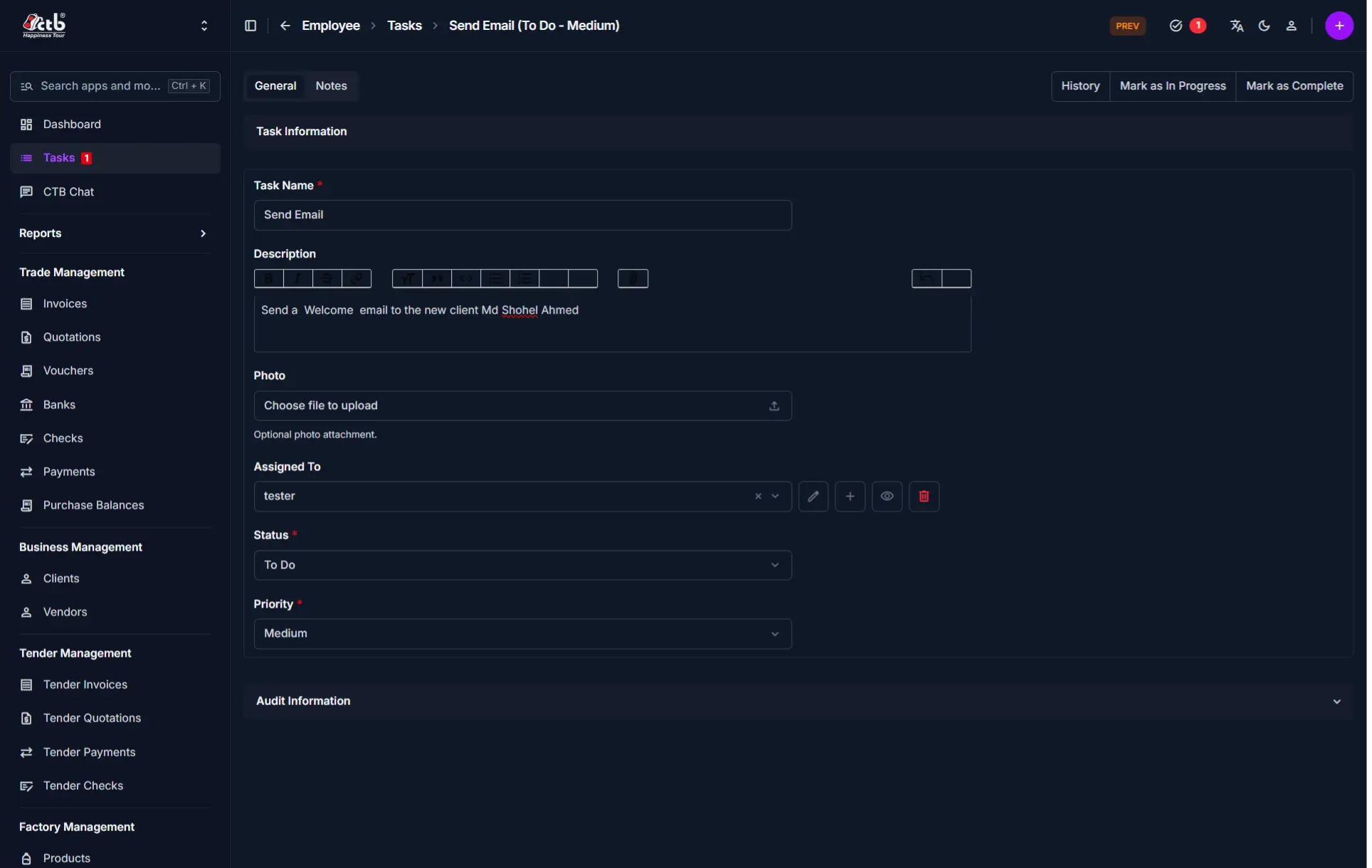
All fields on this page can be updated at any time:
- Task Name and Description — Update to clarify or add details
- Assigned To — Reassign to another employee if needed
- Status — Progress the task through its workflow
- Priority — Adjust based on business needs
Tips and common issues
- Use a clear task name that can be understood in one sentence
- Always assign a task to an active employee
- Update status regularly to keep management informed of progress
- Set a due date to prevent tasks from remaining open indefinitely
- Use the Description field for instructions that the employee needs to complete the work
- Avoid assigning too many high-priority tasks to one employee
Related pages
- Tasks Overview — View all tasks and their status
- Attendance Overview — Track employee attendance records
- Salary Overview — Manage employee payroll
- Employee Management — Update employee information