Vendor Detail
Use this page to view a vendor's profile details, related financial records, and internal notes in one place.
Summary
Use this page to review vendor profile and financial activity before making operational decisions. It helps you verify details across vouchers, checks, payments, and notes from one screen.
When to use this page
- Reviewing a vendor profile before transactions
- Checking voucher, check, and payment history
- Viewing notes and vendor account context
- Verifying details before making updates from edit pages
How to access this page
- Go to Business → Vendors
- Select a vendor from the list
- Click the vendor name to open details
The system opens the Vendor Detail Page.
Step-by-step instructions
- Open Business -> Vendors in the sidebar.
- Select the vendor you want to review.
- Check the General tab for profile and balance details.
- Review Vouchers, Checks, and Payments tabs for transaction history.
- Open Notes for internal remarks, then proceed to edit actions if required.
Field reference
- General tab - Core profile and balance information for the vendor.
- Vouchers tab - Purchase voucher history linked to the vendor.
- Checks tab - Check transactions and their statuses.
- Payments tab - Payment records associated with the vendor.
- Notes tab - Internal notes and operational context.
Page Layout
At the top, you will see a tab bar with the following sections:
General, Vouchers, Checks, Payments, Notes
Each tab allows you to view or manage different types of vendor information.
General Tab
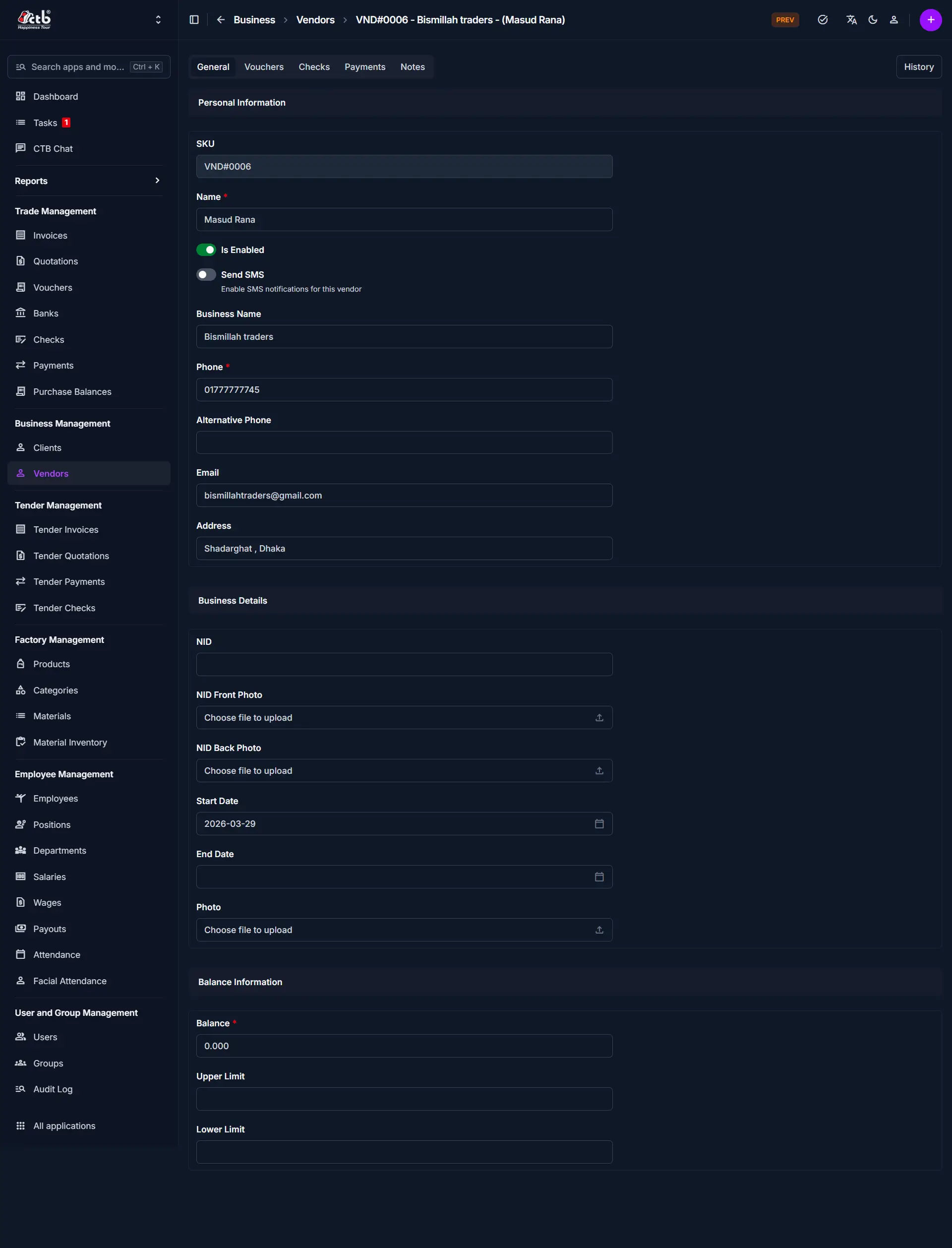
This is the default tab for vendor profile information.
When to use
- Updating vendor name, phone, and address
- Enabling or disabling the vendor
- Uploading or replacing documents
- Modifying balance and limits
Editable Fields
| Field | What you can change | Notes |
|---|---|---|
| Name | Edit | Updates vendor identity |
| Is Enabled | Toggle | Disables vendor from new transactions |
| Send SMS | Enable/Disable | Controls notifications |
| Business Name | Edit | Optional |
| Phone | Edit | Must be valid if SMS is enabled |
| Alternative Phone | Edit | Optional |
| Edit | Optional | |
| Address | Edit | Vendor location |
| NID | Edit | Identification number |
| NID Photos | Replace | Upload new images if needed |
| Start / End Date | Edit | Leave end date empty if ongoing |
| Balance | Adjust | Impacts financial records |
| Upper / Lower Limit | Modify | Controls balance range |
Warning
Changing balance or limits may affect financial reports and transactions.
Vouchers Tab

Displays all purchase vouchers related to the vendor.
When to use
- Reviewing purchase history
- Checking total payable amounts
- Verifying past transactions
Note
This tab is for viewing data only. Editing is done from the purchase/invoice module.
Checks Tab

Shows all check transactions associated with the vendor.
When to use
- Tracking issued or received checks
- Verifying check payment status
- Reviewing financial commitments
Payments Tab

Displays all payment records linked to the vendor.
When to use
- Checking paid vs unpaid amounts
- Reviewing payment history
- Verifying recent transactions
Notes Tab

Stores internal notes related to the vendor.
When to use
- Adding remarks or important information
- Keeping internal communication records
- Tracking special conditions or agreements
Saving Changes
- Click Save to apply updates
- Changes are immediately reflected across the system
Tips and Common Issues
- Disabling a vendor prevents future transactions
- Always verify balance changes before saving
- Use tabs to review financial data before making edits
- Ensure documents are clear and updated
Related Pages
- Add Vendor — Create a new vendor
- Edit Vendor — Update vendor information
- Vendors Overview — Browse and filter vendor records