Create Task
Use this page to create a new task in CTB Admin. A task records a work item that needs to be completed, assigns it to a user, sets its priority, and tracks its progress through status updates. Tasks help teams manage workloads, monitor progress, and maintain accountability across the organization.
Summary
Use this page to create a task, assign it to the right person, and set its priority and status before work begins. Accurate task setup ensures nothing is missed and progress can be tracked effectively.
When to use this page
- Creating a new work item or action that needs to be tracked
- Assigning a task to a specific user before work begins
- Setting priority levels to manage workload and urgency
- Attaching a photo or file relevant to the task
- Adding descriptions or instructions for the assigned user
How to access this page
From the sidebar, click Tasks. On the Tasks List page, click the purple (+) icon in the top-right corner.
The system opens the Create Task page.
Task Information
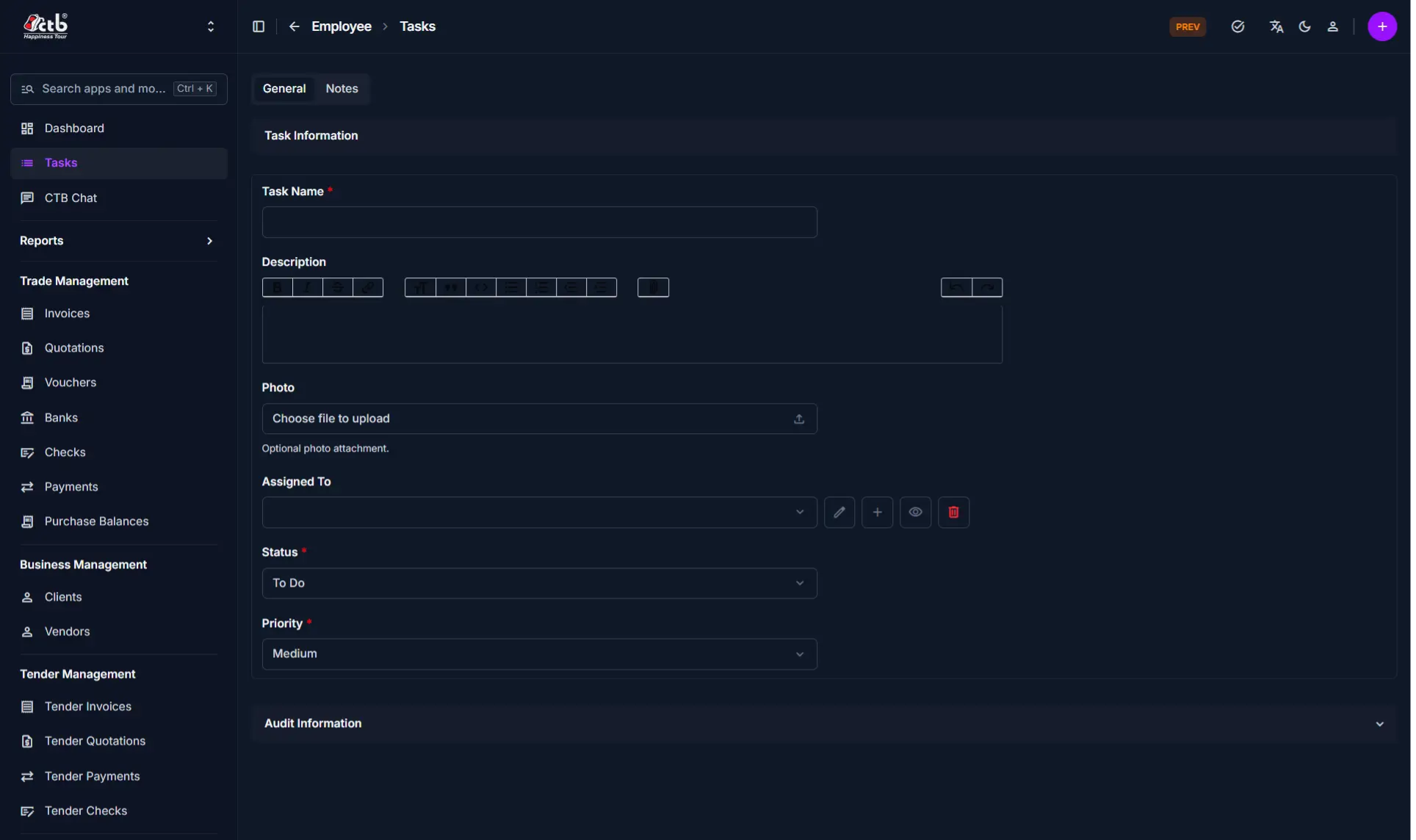
Fill in the following fields:
| Step | Field | What to Do | Description |
|---|---|---|---|
| 1 | Task Name | Enter task name | The title or name of the task (required) |
| 2 | Description | Enter text | Detailed description or instructions for completing the task |
| 3 | Photo | Upload file | Optional photo or file attachment relevant to the task |
| 4 | Assigned To | Select from dropdown | The user responsible for completing the task |
| 5 | Status | Select status | The current state of the task |
| 6 | Priority | Select priority | The urgency level of the task |
Required Fields
Fields marked with a red star (*) are mandatory. Task Name, Status, and Priority must be filled before saving.
Status Options
The Status field tracks where the task is in its workflow:
| Status | Description |
|---|---|
| To Do | Task has been created but work has not started yet |
| In Progress | Task is currently being worked on |
| Completed | Task has been finished successfully |
| Cancelled | Task has been called off and will not be completed |
Priority Options
The Priority field indicates the urgency level of the task:
| Priority | Description |
|---|---|
| Low | Task can be completed when time allows; not time-sensitive |
| Medium | Task should be completed in a reasonable timeframe (default) |
| High | Task needs to be addressed soon; important to operations |
| Urgent | Task requires immediate attention; must be resolved right away |
Notes Tab
The Notes tab allows you to add internal comments or additional context about the task:
| Field | What to Do | Description |
|---|---|---|
| Note | Enter text | Internal notes or additional task instructions |
Audit Information
The Audit Information section is a collapsible section that displays system-generated details about who created or last modified the task record. This section is read-only and supports compliance and change tracking.
Info
Click the Audit Information header to expand and review the creation and modification history for this task.
Saving the Task
After completing all sections:
- Click Save to create the task
- Click Save and continue editing to save and stay on the page
- Click Save and add another to save and immediately create another task
Tips
- Task Name is required — You must enter a task name before saving
- Assign tasks before saving — Selecting a user in Assigned To ensures the right person is notified and accountable
- Default status is To Do — New tasks start as To Do; update the status as work progresses
- Default priority is Medium — Adjust the priority to reflect the actual urgency of the task
- Photo is optional — Attach a photo only when a visual reference is needed to complete the task
- Use Description for clarity — Provide enough detail in the description so the assigned user understands exactly what is required
- Cancelled tasks remain in the system — Cancelled tasks are not deleted; they remain visible for record-keeping and reporting
Related Pages
- Tasks Overview — View and manage all tasks in the system
- Task Detail — View or edit a task after creation
- Employees — Manage the users who can be assigned tasks
- Audit Log — Review all changes made to task records