Positions Overview
The Positions page displays all job positions in a structured table. It allows you to quickly search, review, and manage employee positions used across your workforce.
Page Layout
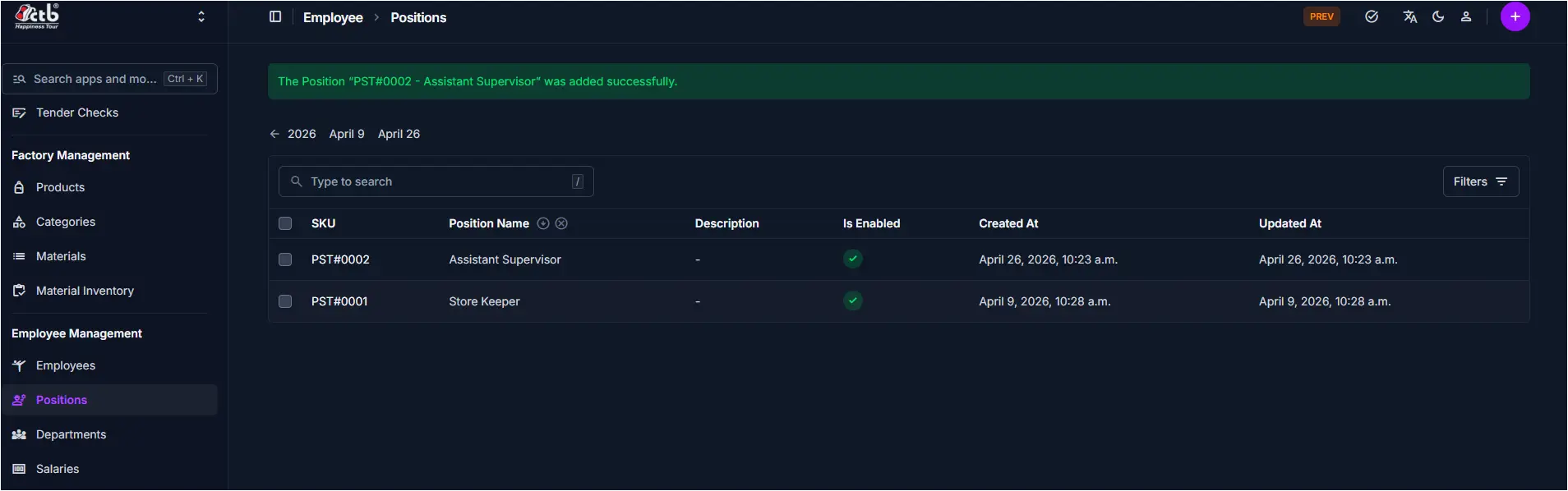
The page includes:
- Search bar for quick lookup
- Position list table
- Filters button for advanced filtering
- Add (+) button for creating new positions
Position List
The table shows all positions with key details:
| Column | Description |
|---|---|
| SKU | Unique identifier for each position (e.g., PST#0001) |
| Position Name | Job title used for organizing and assigning employees |
| Description | Additional role details (if provided) |
| Is Enabled | Status indicator showing if position is active |
| Created At | Date and time the position was created |
| Updated At | Last modification date |
Search Bar
Use the search bar to quickly find positions.
How to use
- Type a keyword (e.g., position name or SKU)
- The table updates instantly based on your input
Tip
Use SKU for faster and more accurate search results.
Filters
Use the Filters button to narrow down position results.
Filter options
- Status — Filter by enabled or disabled positions
- Created Date — Filter positions by creation date range
- Updated Date — Filter positions by modification date range
- Department — Filter positions by assigned department (if applicable)
Note
Apply filters to quickly locate positions matching your workflow needs.
Tips and Best Practices
- Use search instead of manually scanning the list
- Keep position names consistent and clear for easier employee assignment
- Filter by status to focus on active positions when onboarding employees
- Review position details before editing to avoid disrupting assigned employees
- Disable unused positions instead of deleting them to preserve historical records
Related Pages
- Edit Position — Update position details and enable/disable status
- Employees Overview — View employees assigned to positions
- Departments Overview — Organize positions by department