Voucher Detail
Use this page to view and manage a voucher after it has been created. The voucher detail page displays all components of a voucher—general information, voucher items, and notes—with a button to view change history. Editing capabilities are available directly on this page.
When to use Voucher Detail
- Viewing a complete voucher record with all materials and calculations
- Checking voucher payment information and paid amount
- Modifying voucher details, items, or payment fields
- Reviewing the voucher history and change log
- Deleting a voucher that is no longer needed
How to access this page
From the sidebar, go to Trade Management → Vouchers. On the Vouchers List page, click on any voucher number or SKU to open the Voucher Detail page.
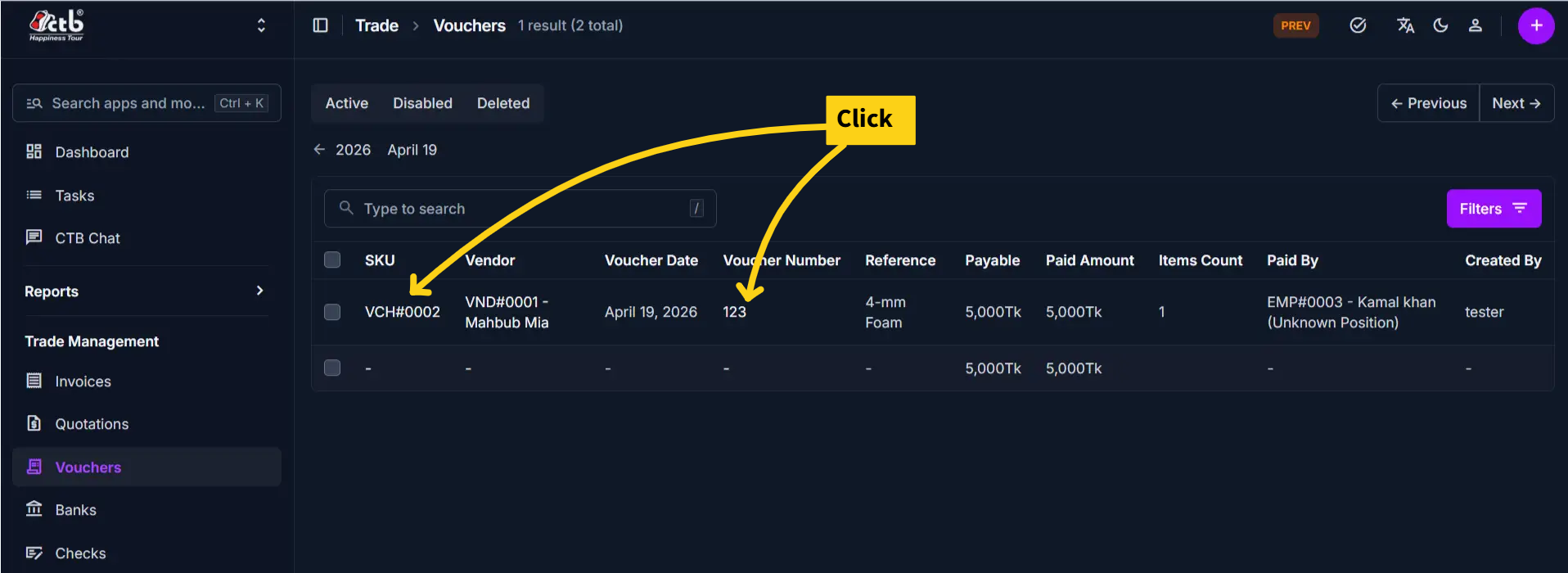
The page displays the voucher with three main tabs: General, Voucher Items, and Notes.
Page Overview
The voucher detail page includes an action button at the top-right:
| Button | Action | Available When |
|---|---|---|
| History | View past changes and modifications to voucher | Always visible |
General Tab
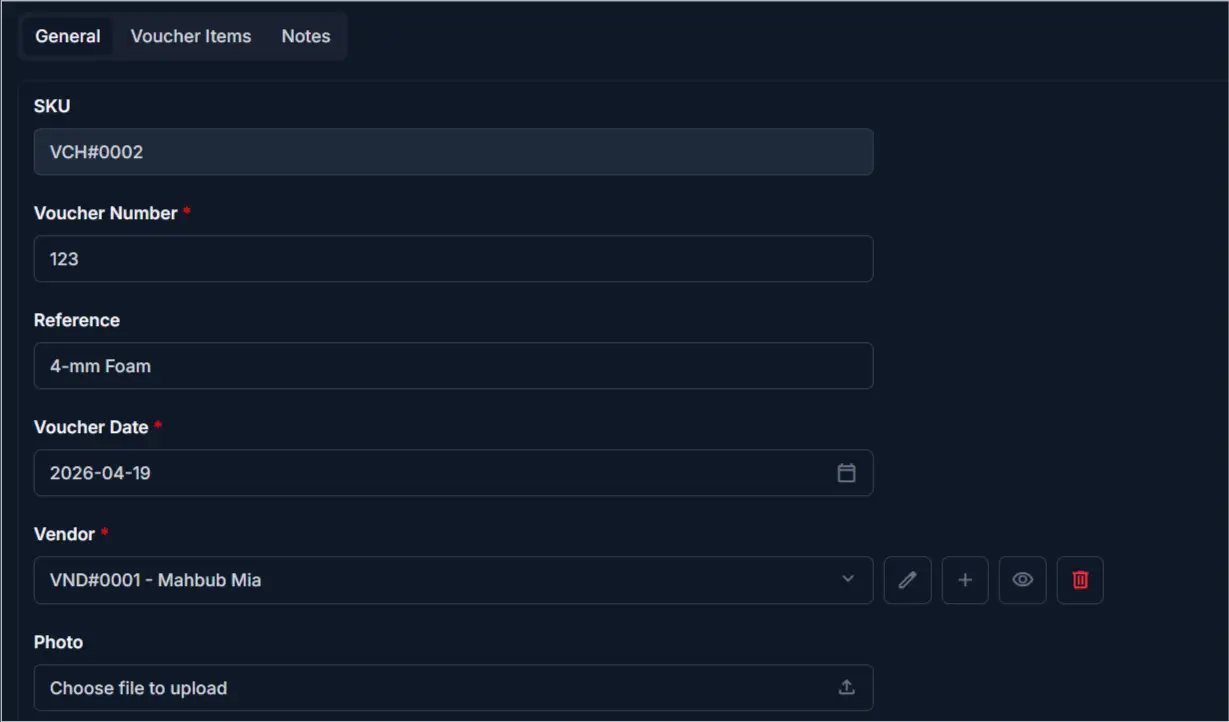
The General tab displays voucher header information:
| Field | Description |
|---|---|
| SKU | Auto-generated unique stock-keeping identifier |
| Voucher Number | Unique identifier for this voucher |
| Reference | Optional reference number or external document ID |
| Voucher Date | Date the voucher was issued |
| Vendor | The supplier linked to this voucher |
| Photo | Attached voucher photo or scan copy |
Required Fields
Fields marked with a red star (*) are mandatory and must be filled before saving.
Payment Details Section
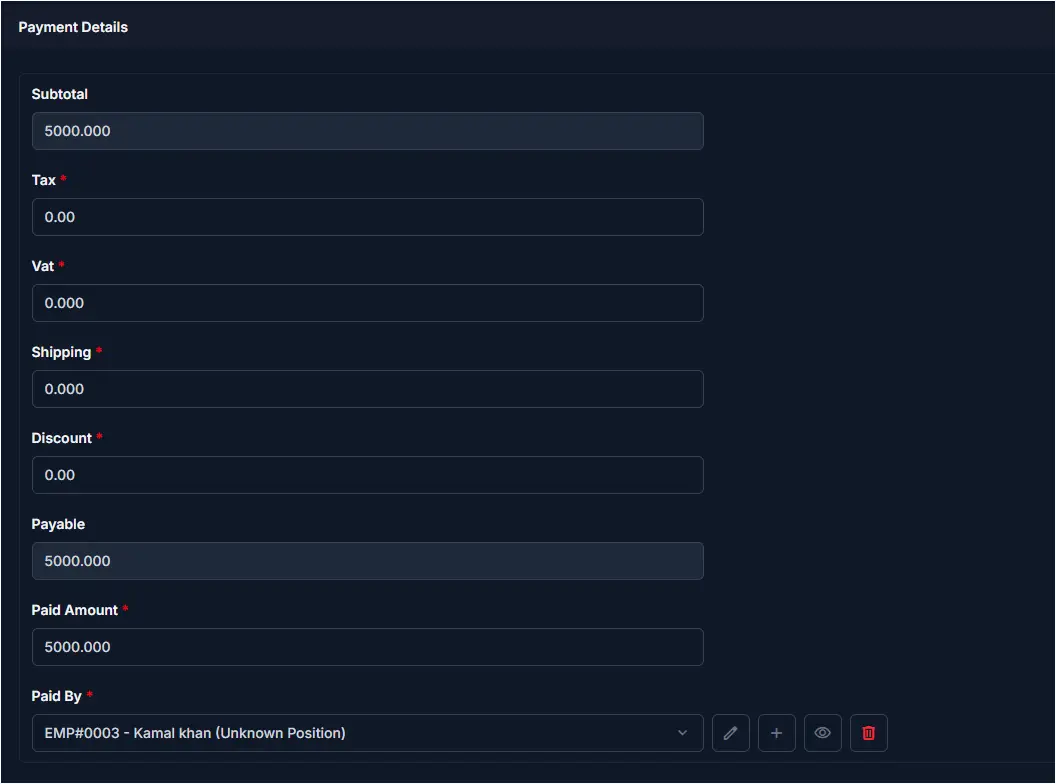
Below the general fields, the page displays financial information:
| Field | Description | Editable |
|---|---|---|
| Subtotal | Sum of all item totals (auto-calculated) | Auto-calc |
| Tax | Tax amount charged on the voucher | Yes |
| VAT | Value-added tax if applicable | Yes |
| Shipping | Shipping or delivery cost | Yes |
| Discount | Discount amount applied to reduce the total | Yes |
| Payable | Final amount due (Subtotal + Tax + VAT + Shipping - Discount) | Auto-calc |
| Paid Amount | Amount already paid to the vendor | Yes |
| Paid By | Employee or method used to make the payment | Yes |
Note
Subtotal and Payable are calculated automatically based on other fields.
Voucher Items Tab
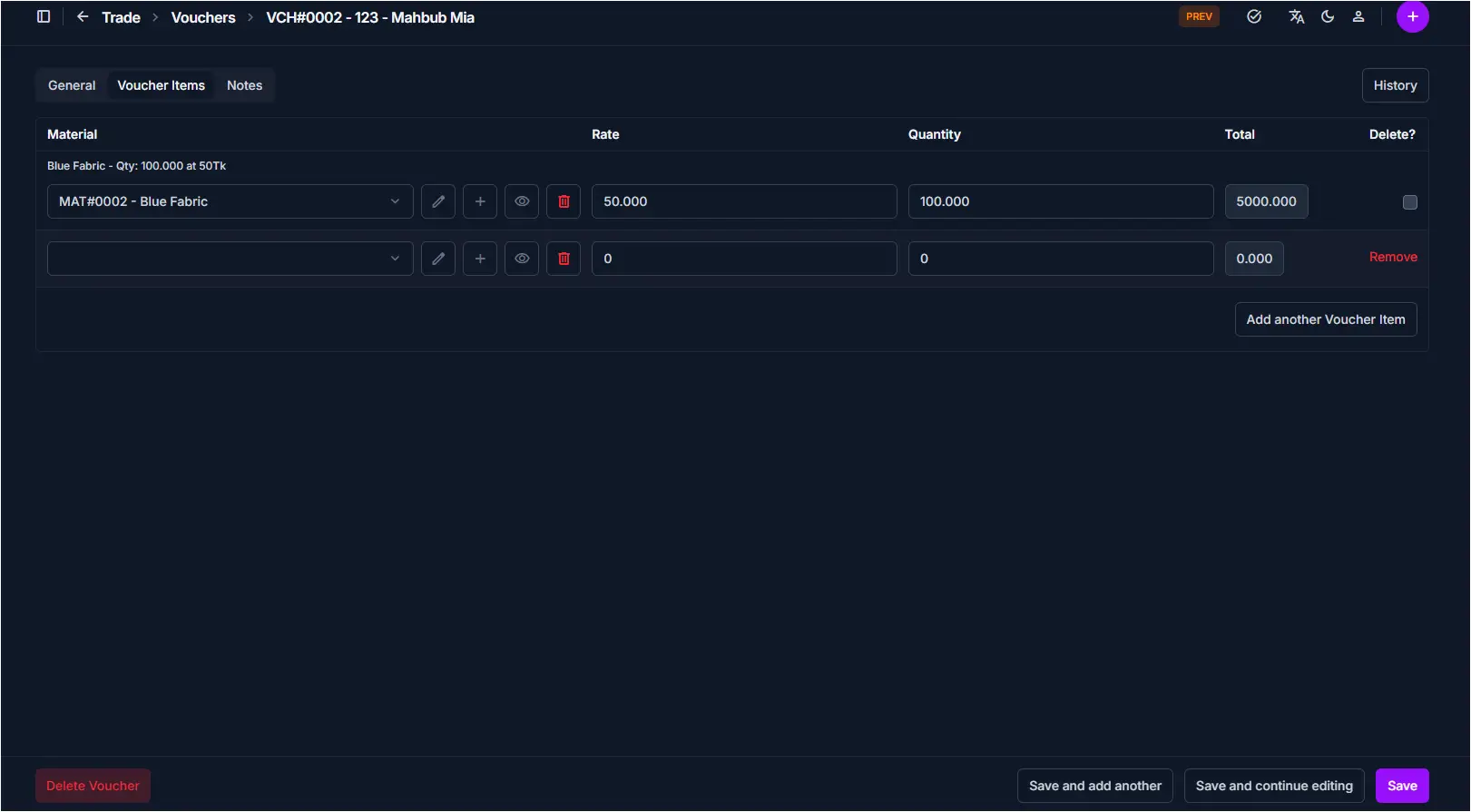
The Voucher Items tab displays all materials or services on the voucher:
| Column | Description |
|---|---|
| Material | Name and code of the material procured |
| Rate | Price per unit |
| Quantity | Number of units received |
| Total | Quantity × Rate for each line item |
- Each item row shows a summary label above it (e.g., Blue Fabric - Qty: 100.000 at 50Tk) for quick reference
- Click the edit icon on a line item to modify its details
- Click the trash icon to delete a line item
- Click Add another Voucher Item to add more materials to the voucher
- Click Remove on an empty or unwanted row to discard it
Tip
Each item's total is calculated automatically once Rate and Quantity are entered.
Notes Tab
The Notes tab contains internal comments for the voucher:
| Field | Description |
|---|---|
| Note | Internal notes, special conditions, or remarks |
Saving Changes
After making edits on any tab:
- Click Save to apply changes and stay on the detail page
- Click Save and continue editing to save and remain in edit mode
- Click Save and add another to save and immediately create a new voucher
Save Changes
After making edits, always click Save at the bottom-right to apply your changes. Unsaved changes will be lost if you navigate away.
Deleting a Voucher
A Delete Voucher button is available at the bottom-left of the page.
Permanent Action
Deleting a voucher is permanent. Ensure the voucher is no longer needed before confirming deletion.
Tips and Common Issues
- Vendor is required — You must select a vendor before saving
- Subtotal is auto-calculated — It updates automatically as you add or modify voucher items
- Discount reduces Payable — Enter a discount to lower the final amount due
- Paid Amount tracks settlement — Keep Paid Amount updated to reflect actual payments made
- Photo upload supported — Attach a physical voucher scan for document record-keep
- History tracks all changes — Use the History button to audit who changed what and when
Related Pages
- Vouchers Overview — View all vouchers and search by vendor or date
- Create Voucher — Create a new voucher for a vendor
- Vendor Overview — Manage vendor profiles and contact information
- Purchase Balance — Track outstanding payments to vendors
- Materials Overview — View and manage available materials