Employee Detail
Use this page to review a single employee’s complete profile. It helps you confirm personal information, work assignment, salary settings, and related payroll records before you process attendance, wages, salary, or payouts.
When to use Employee Detail page
- Reviewing an employee’s full profile before payroll
- Checking position, department, and balance information
- Confirming identity and contact details
- Looking up related salary, wage, or payout records
How to access Employee Detail page
- Go to Employee → Employees from the sidebar.
- On the Employees list page, click the employee name or sku.
The Employees list page shows active, disabled, and deleted records. From there, you can open the employee profile you want to review.
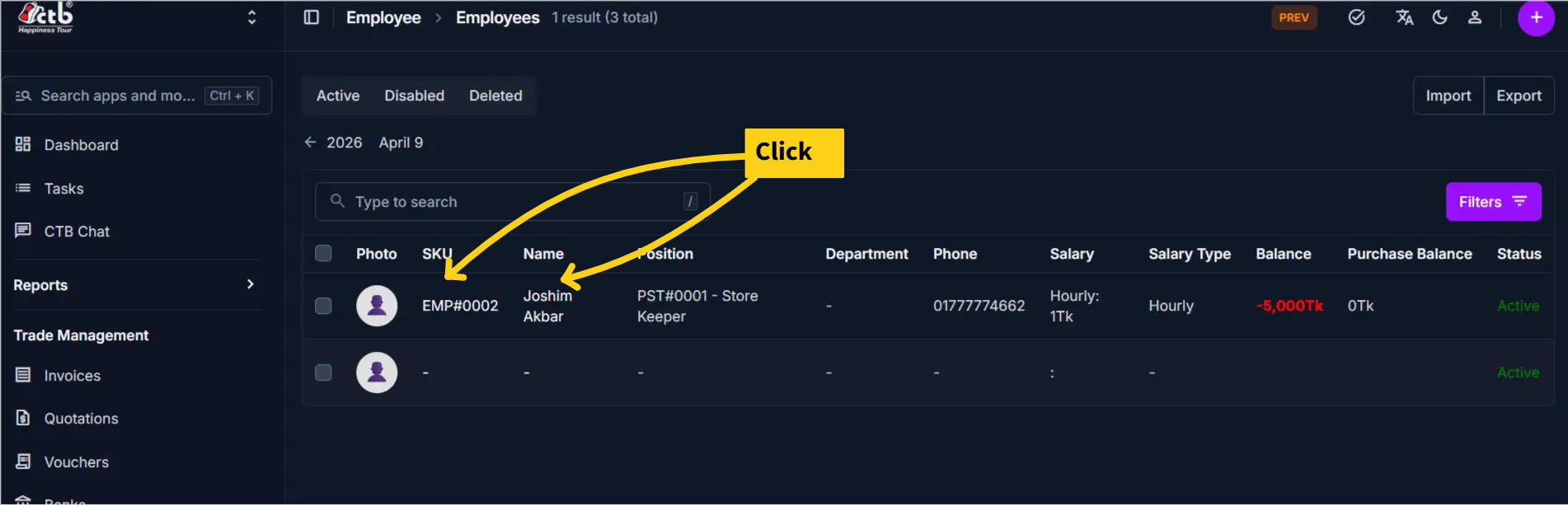
The system opens the Employee Detail page.
Page Overview
At the top of the page, you will usually see a tab bar with these sections:
- General
- Wages
- Salaries
- Payouts
The General tab shows the employee’s core profile. The other tabs show related payroll and payment records.
General Tab
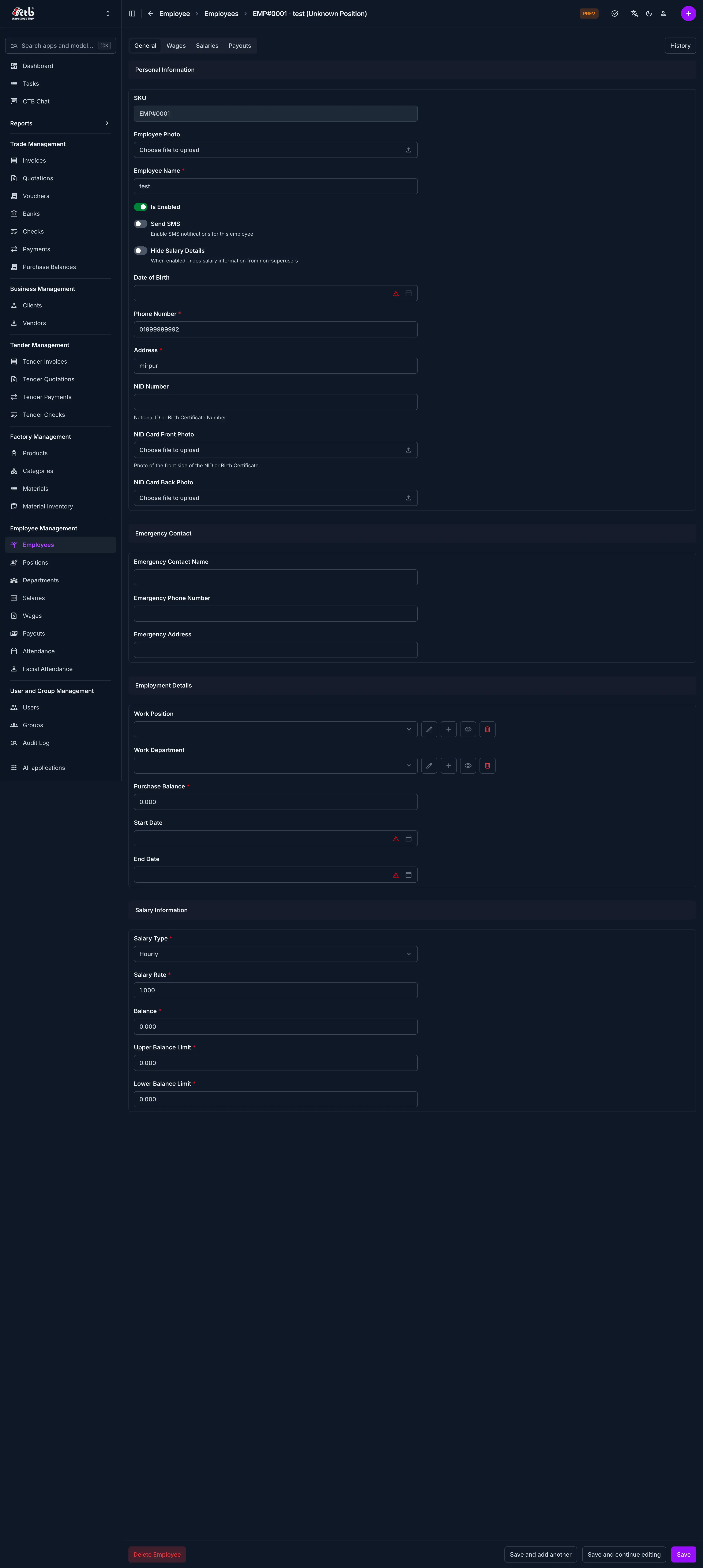
This tab displays the employee’s main profile and job information.
| Field | What it tells you |
|---|---|
| SKU | The system-generated employee code |
| Employee Photo | Profile image used in the system |
| Employee Name | The employee’s display name |
| Is Enabled | Whether the employee is active |
| Send SMS | Whether SMS notifications are enabled |
| Hide Salary Details | Whether salary information should be hidden |
| Date of Birth | Employee birth date |
| Phone Number | Main contact number |
| Address | Current address |
| NID Number | Identification number used for verification |
| NID Card Front Photo | Front image of the NID card |
| NID Card Back Photo | Back image of the NID card |
| Emergency Contact Name | Main emergency contact person |
| Emergency Phone Number | Emergency contact number |
| Emergency Address | Emergency contact address |
| Work Position | Assigned role or job title |
| Work Department | Assigned department |
| Purchase Balance | Employee purchase or ledger balance |
| Start Date | Employee joining or activation date |
| End Date | Date the employee was ended or deactivated, if any |
| Salary Type | How the employee’s salary is calculated |
| Salary Rate | Base rate used in payroll |
| Balance | Current salary-related balance |
| Upper Balance Limit | Highest allowed balance |
| Lower Balance Limit | Lowest allowed balance |
Wages Tab
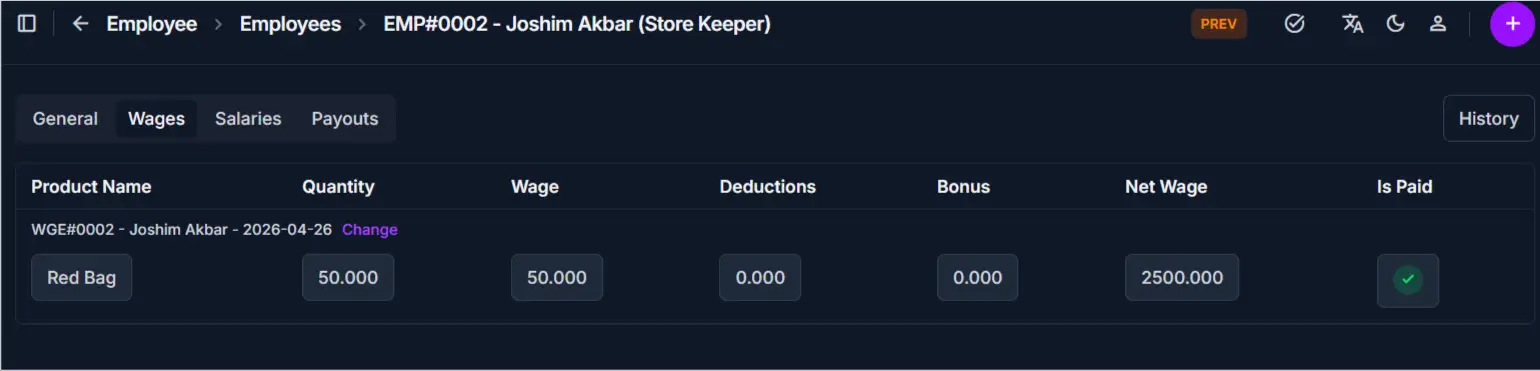
Use this tab to review wage-related entries for the employee.
Typical checks include:
- Wage entries created for the employee
- Amounts tied to worked days or hours
- Paid and unpaid wage history
Salaries Tab
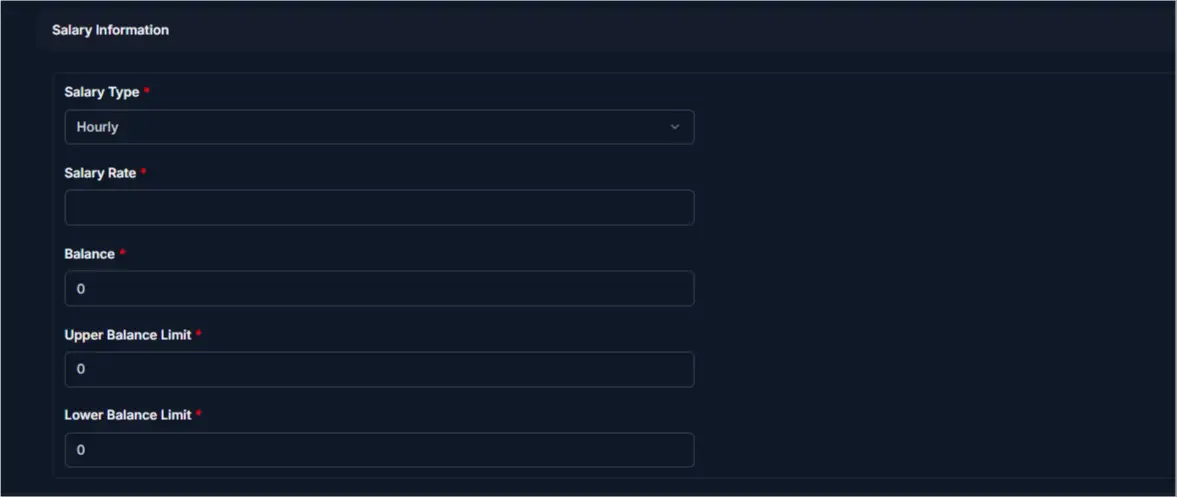
Use this tab to review salary records generated for the employee.
Typical checks include:
- Salary periods already generated
- Salary amounts and payment status
- Salary records linked to payroll processing
Payouts Tab
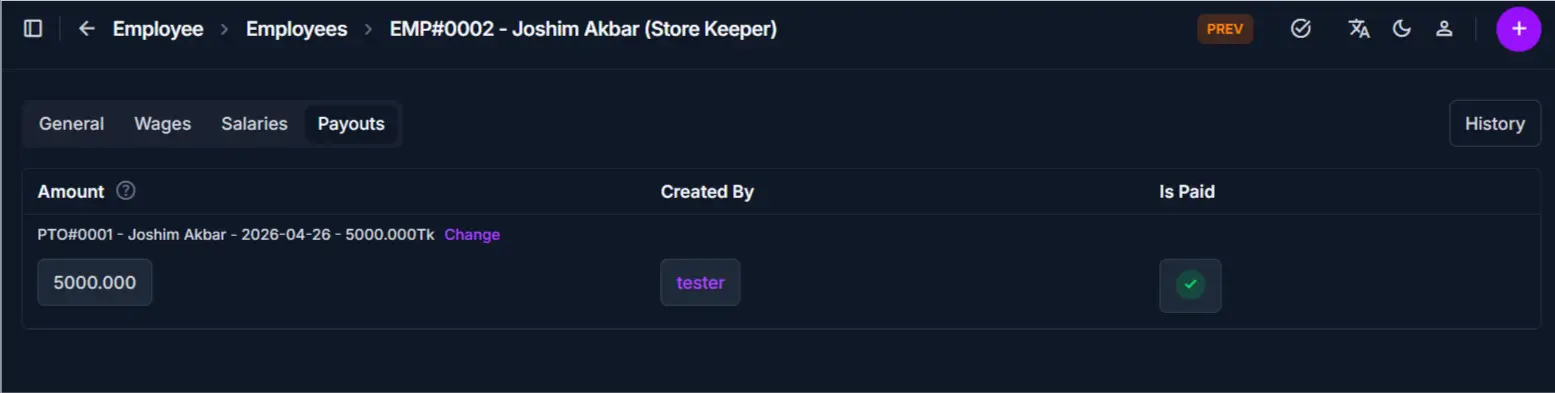
Use this tab to review payout history for the employee.
Typical checks include:
- Payout dates and amounts
- Settled and pending payouts
- Any payout history linked to the employee balance
Available Actions
From the Employee Detail page, you may see the following actions:
| Action | Description |
|---|---|
| Edit Employee | Open the employee form and change profile data |
| History | Review recent changes and activity, if available |
| Delete Employee | Remove the employee record, if your role allows it |
Tips
- Use the General tab first when you need to verify identity or employment details.
- Check Wages, Salaries, and Payouts before processing new payroll records.
- If Hide Salary Details is enabled, salary information may not appear in every view.
- Inactive employees may still appear in history, but they should not be used in new records.
Related Pages
- Add Employee — Create a new employee record
- Edit Employee — Update employee information
- Record Attendance — Track attendance for the employee
- Generate Salary — Create salary records
- Add Wage Entry — Record a wage transaction
- Create Payout — Record an employee payout