Create Voucher
Use this page to create a voucher for recording purchases from vendors. A voucher documents the receipt of materials or services and tracks payment obligations. Vouchers are used to manage accounts payable, record vendor transactions, and generate procurement reports.
When to use Create Voucher
- Recording purchases of materials from vendors
- Documenting received goods with associated costs
- Creating a payment record for vendor-supplied materials
- Tracking outstanding payables to suppliers
How to access this page
From the sidebar, go to Trade Management → Vouchers. On the Vouchers List page, click the purple (+) icon in the top-right corner.
The system opens the Create Voucher Page.
General Information
Fill in the following fields on the General tab:
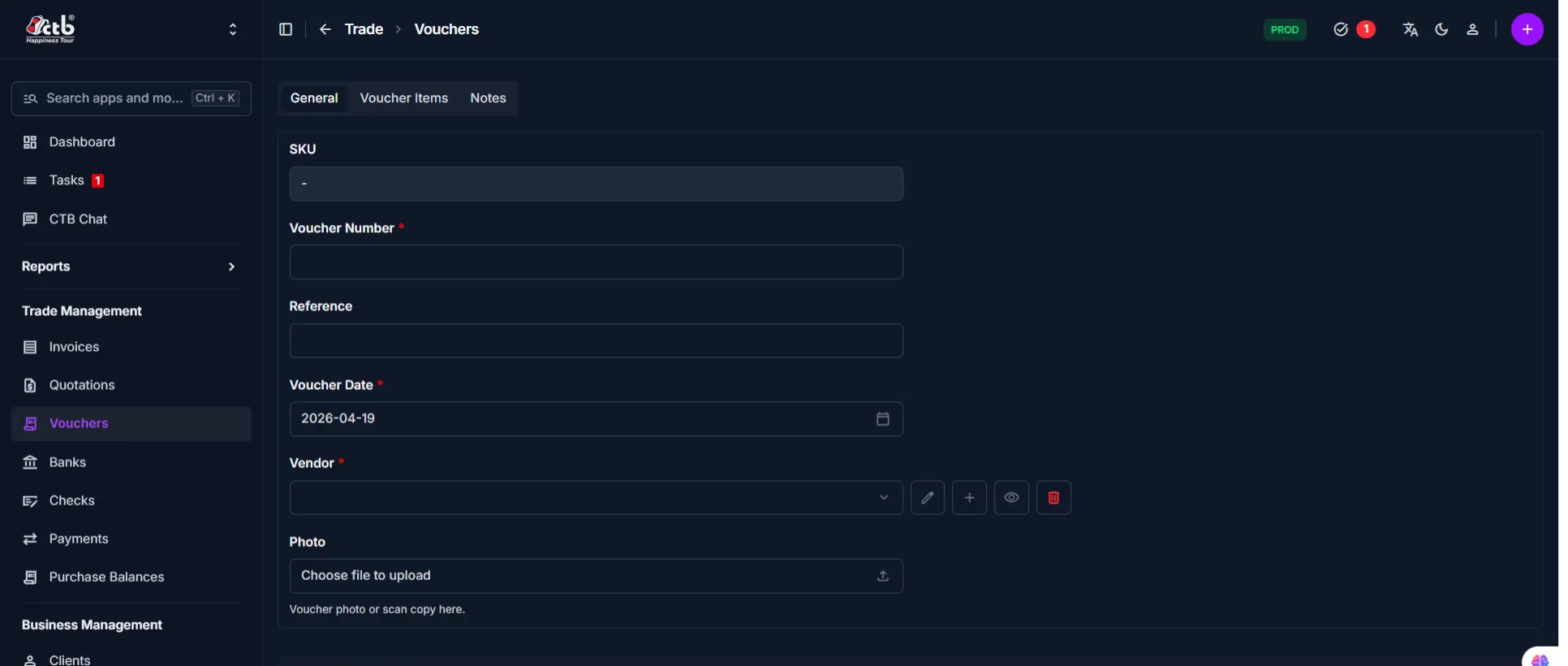
| Step | Field | What to Do | Description |
|---|---|---|---|
| 1 | SKU | Auto-generated | System-generated identifier for the voucher |
| 2 | Voucher Number | Enter number | Unique reference number for this voucher |
| 3 | Reference | Enter text | External reference (e.g., vendor invoice number) |
| 4 | Voucher Date | Select date | Date the voucher is created (defaults to today) |
| 5 | Vendor | Select vendor | The supplier or vendor associated with this voucher |
| 6 | Photo | Upload file | Attach a photo or scan copy of the physical voucher |
Warning
Fields marked with a red star (*) are mandatory.
Payment Details
After adding voucher items, configure the financial details:
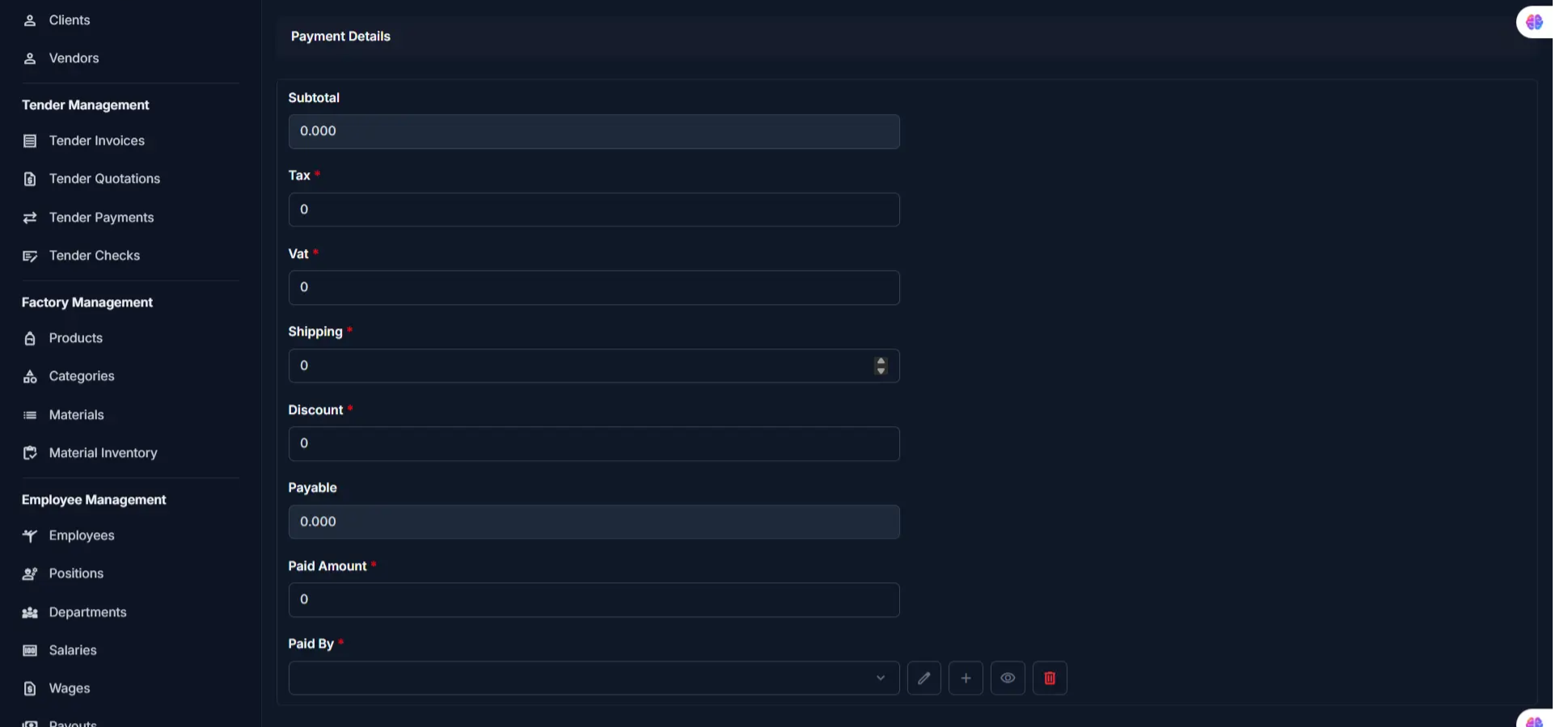
| Step | Field | What to Do | Description |
|---|---|---|---|
| 1 | Subtotal | Auto-calculated | Sum of all item totals (Quantity × Rate) |
| 2 | Tax | Enter amount | Tax charged on the purchase |
| 3 | VAT | Enter amount | Value-added tax if applicable |
| 4 | Shipping | Enter amount | Shipping or delivery cost |
| 5 | Discount | Enter amount | Discount applied to the voucher |
| 6 | Payable | Auto-calculated | Final amount due (Subtotal + Tax + VAT + Shipping - Discount) |
| 7 | Paid Amount | Enter amount | Amount already paid to the vendor |
| 8 | Paid By | Select option | Payment method or account used for payment |
Note
Subtotal and Payable are calculated automatically based on other fields.
Add Voucher Items
Add materials to the voucher using the Voucher Items tab:
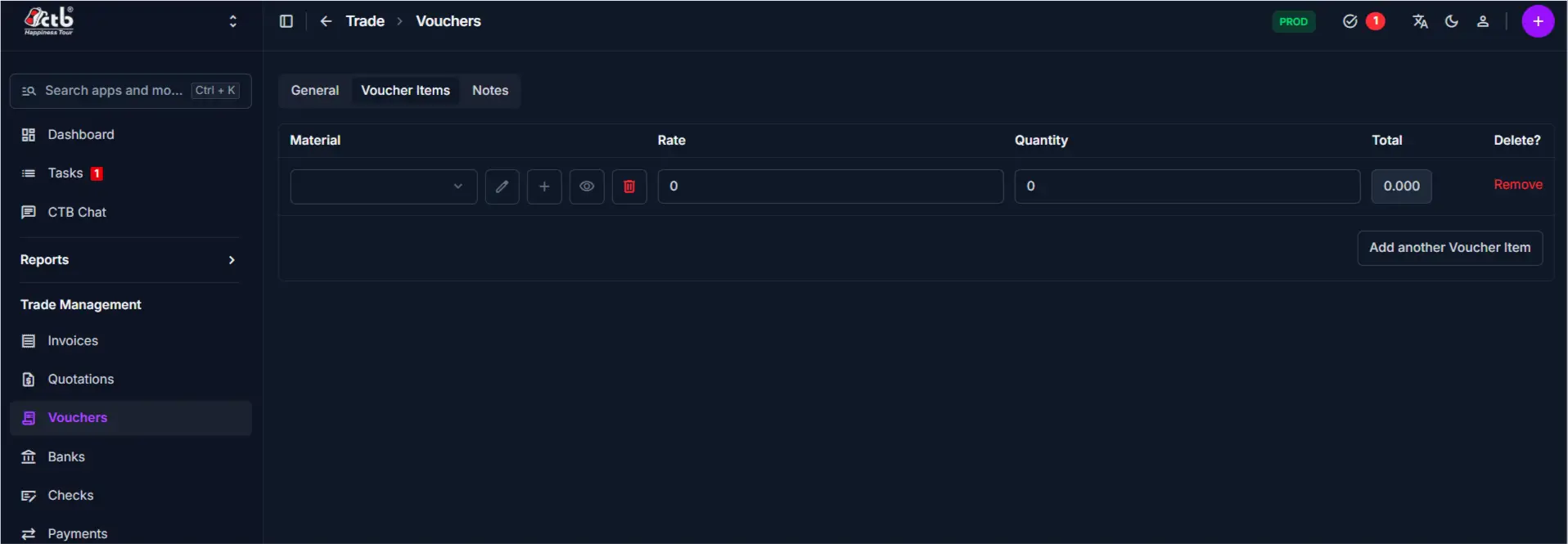
| Step | Field | What to Do | Description |
|---|---|---|---|
| 1 | Material | Select from dropdown | The material or item being purchased |
| 2 | Rate | Enter rate | Cost per unit of the material |
| 3 | Quantity | Enter quantity | Number of units received |
| 4 | Total | Auto-calculated | Quantity × Rate for this item |
- Click Add another Voucher Item to add multiple materials to one voucher
- Click Remove to delete a voucher item
- Use the edit (pencil) icon to modify material details
- Use the view (eye) icon to preview material information
- Use the (+) icon to quickly add a new material record
Tip
Each item's total is calculated automatically once you enter Rate and Quantity.
Notes
Add optional notes or internal comments using the Notes tab:
| Step | Field | What to Do | Description |
|---|---|---|---|
| 1 | Note | Enter text | Internal notes or special conditions |
Saving the Voucher
After completing all sections:
- Click Save to create the voucher
- Click Save and continue editing to save and remain on the page
- Click Save and add another to save and create a new voucher immediately
The voucher is now recorded and available for payment processing and reporting.
Tips and Common Issues
- Vendor is required — You must select a vendor before saving
- Voucher Number is required — Enter a unique reference number for each voucher
- Items add to Subtotal — The voucher calculates Subtotal automatically when you add items
- Paid Amount tracks partial payments — Enter the amount paid so far to track outstanding balances
- Upload a scan for audit trails — Attach a photo or scan of the physical voucher for record-keeping
- Date affects reporting — Voucher Date determines which reporting period the voucher appears in
Related Pages
- Voucher Detail — View or edit voucher details after creation
- Edit Voucher — Update voucher information and items
- Vendors — Manage vendor records linked to vouchers
- Purchase Balances — Track outstanding payables to vendors