Create Invoice
Use this page to create a standard invoice for a client. An invoice records the sale of products or services and tracks payment. Invoices are used to request payment, manage accounts receivable, and generate business reports.
Summary
Use this page to create client invoices with items, charges, and totals in one workflow. A correctly prepared invoice improves payment tracking and reporting accuracy.
When to use this page
- Selling CTB's own products to clients
- Recording sales of inventory from your company's stock
- Creating an invoice for direct product sales
- Issuing payment request for goods delivered to a customer
How to access this page
From the sidebar, go to Trade Management → Invoices. On the Invoices List page, click the purple (+) icon in the top-right corner.
The system opens the Create Invoice Page.
Step-by-step instructions
- Open Trade Management -> Invoices and click the add icon.
- Fill the invoice header details in General Information.
- Add one or more line items in Add Items.
- Review taxes, shipping, discount, and payable amount in Payment Details.
- Add optional notes and set invoice visibility/status.
- Click the appropriate save action to create the invoice.
Field reference
- Invoice Number - Unique identifier used to track the invoice.
- Invoice Date - Billing date used in reports and period summaries.
- Client - Customer account receiving the invoice.
- Status - Lifecycle state such as Draft, Sent, or Cancelled.
- Payable - Final amount due after all charges and discounts.
General Information
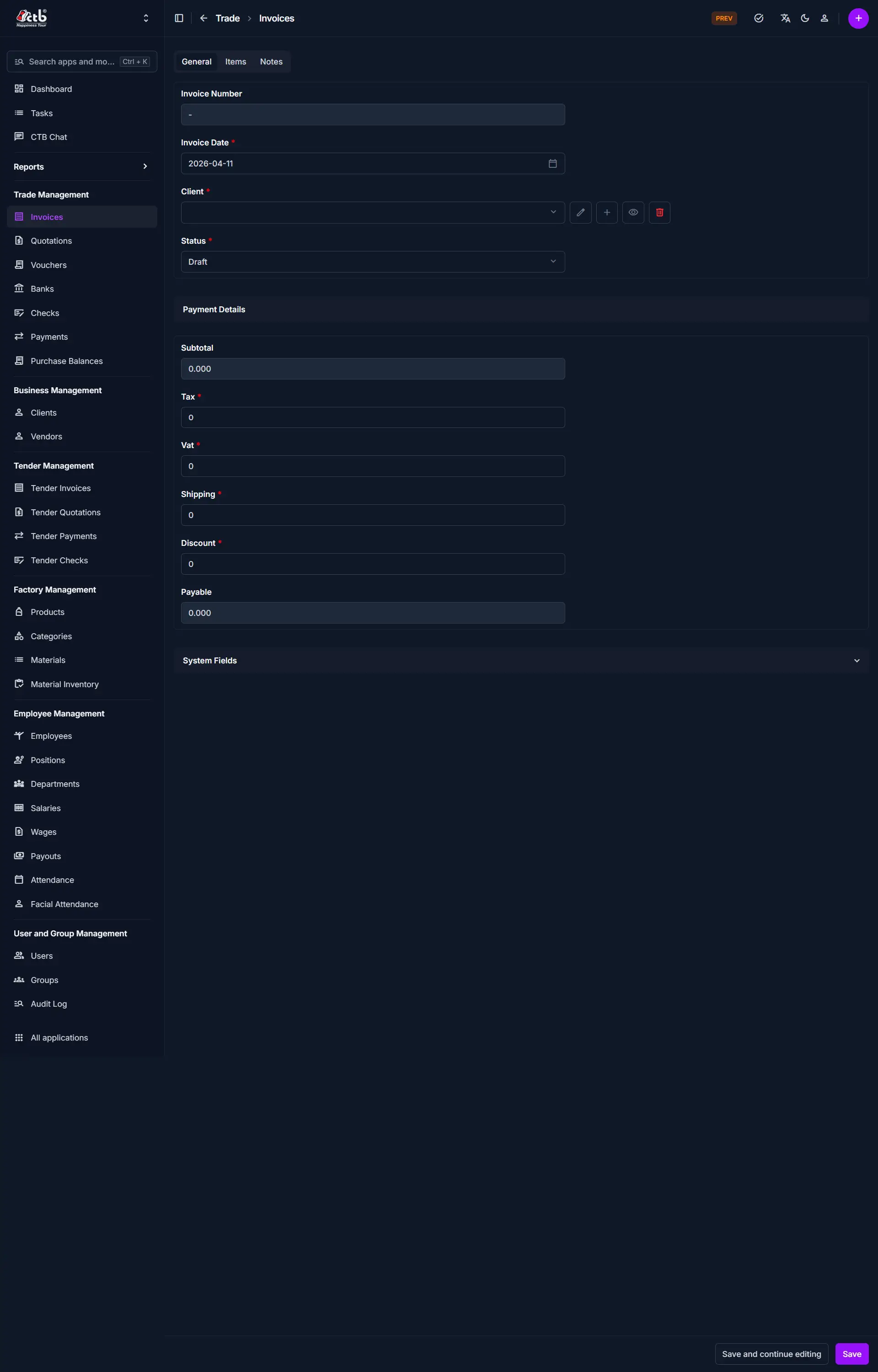
Fill in the following fields on the General tab:
| Step | Field | What to Do | Description |
|---|---|---|---|
| 1 | Invoice Number | Auto-generated or enter | Unique identifier for this invoice |
| 2 | Invoice Date | Select date | Date the invoice is issued |
| 3 | Client | Select client | The customer receiving the invoice |
| 4 | Status | Select status | Current state (Draft, Sent, Cancelled, etc.) |
Required Fields
Fields marked with a red star (*) are mandatory.
Payment Details
After adding items, configure the financial details:
| Step | Field | What to Do | Description |
|---|---|---|---|
| 1 | Subtotal | Auto-calculated | Sum of all item totals (Quantity × Selling Rate) |
| 2 | Tax | Enter amount | Tax to be charged on the order |
| 3 | VAT | Enter amount | Value-added tax if applicable |
| 4 | Shipping | Enter amount | Shipping or delivery cost |
| 5 | Discount | Enter amount | Discount to apply to the invoice |
| 6 | Payable | Auto-calculated | Final amount due (Subtotal + Tax + VAT + Shipping - Discount) |
Note
Payable is calculated automatically based on other fields.
Add Items
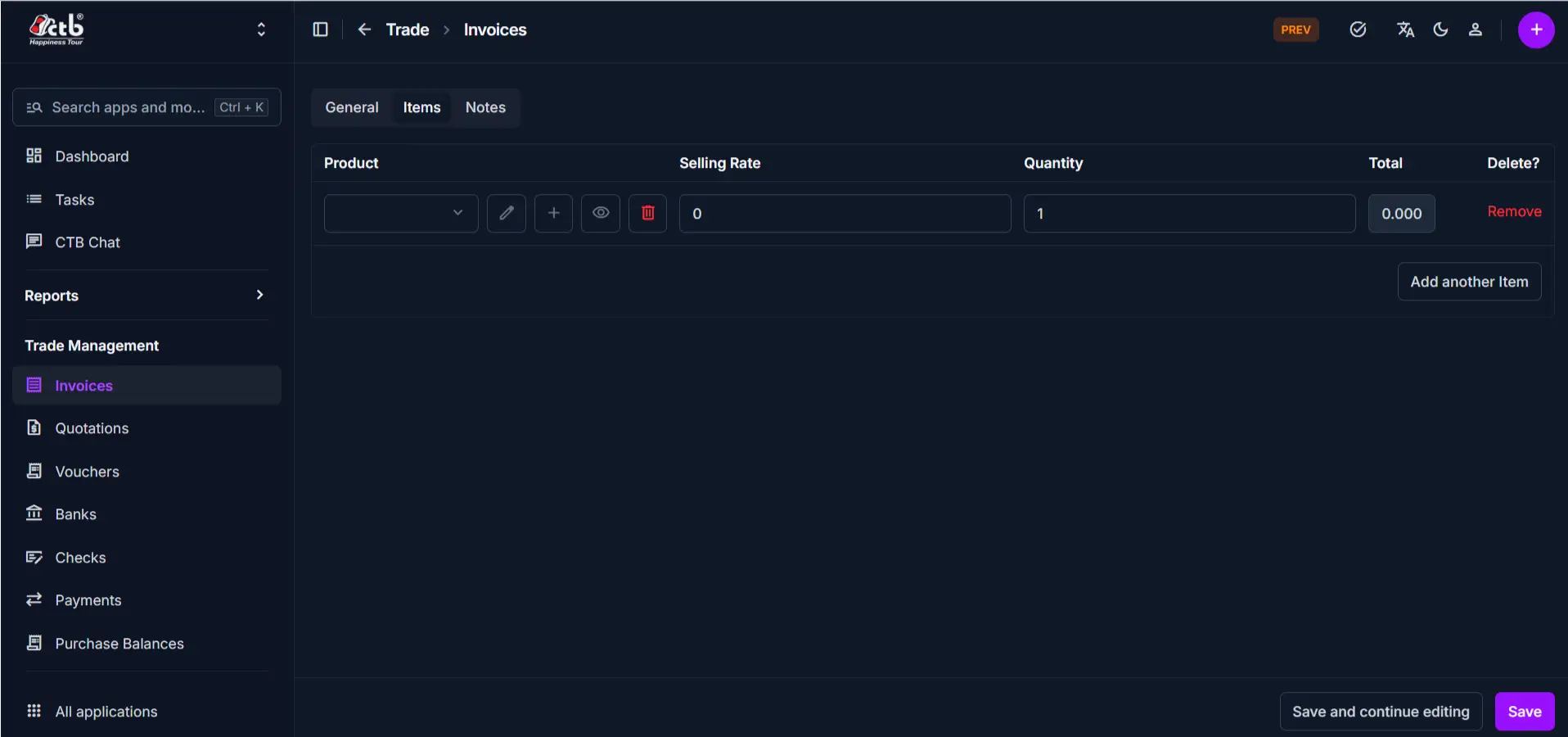
Add products or services to the invoice:
| Step | Field | What to Do | Description |
|---|---|---|---|
| 1 | Product | Select from dropdown | The product or service being sold |
| 2 | Selling Rate | Enter or select | Price per unit |
| 3 | Quantity | Enter quantity | Number of units (or quantity) |
| 4 | Total | Auto-calculated | Quantity × Selling Rate for this item |
- Click Add another Item to add multiple products to one invoice
- Click the trash icon to remove an item
- Use the edit icon to modify an item's details
Tip
Each item's total is calculated automatically once you enter Selling Rate and Quantity.
Notes and Status
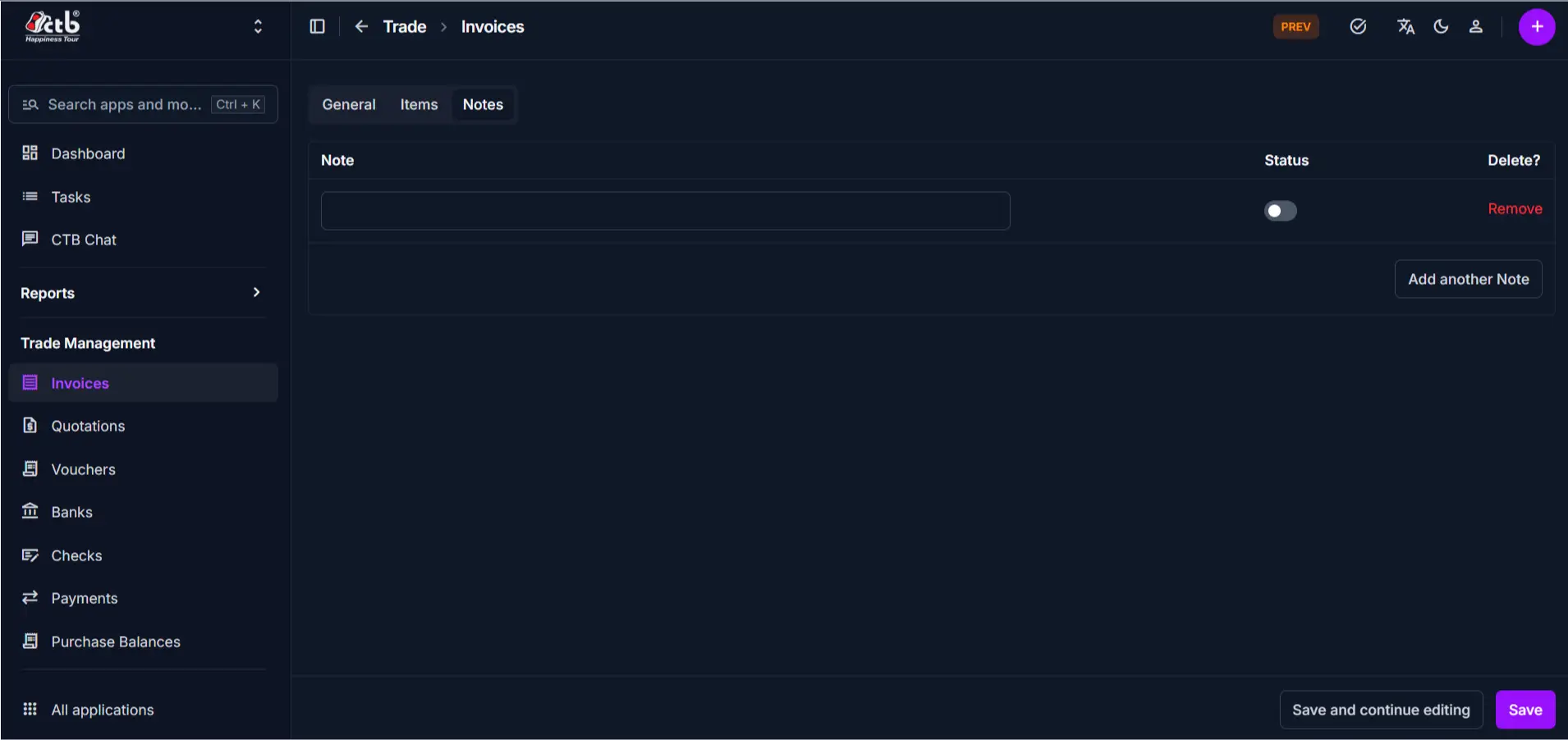
Add optional notes or internal comments:
| Step | Field | What to Do | Description |
|---|---|---|---|
| 1 | Note | Enter text | Internal notes or special conditions |
| 2 | Status | Toggle switch | Show or hide the invoice from reports |
Saving the Invoice
After completing all sections:
- Click Save to create the invoice as Draft/sent/cancelled. based on the status you selected
- Click Save and continue editing to save and stay on the page
- Click Save and add another to save and create another invoice immediately
The invoice is now ready to be sent to the client or processed for payment.
Tips
- Client is required — You must select a client before saving
- Items add to Subtotal — The invoice calculates Subtotal automatically when you add items
- Discount reduces Payable — Enter a discount to reduce the final amount due
- Status controls visibility — Use Status to mark invoices as Draft, Sent,Cancelled, etc.
- Date affects reporting — Invoice Date determines which reporting period the invoice appears in
Related Pages
- Invoice Detail — View or edit invoice details after creation
- Edit Invoice — Update invoice information and items
- Print Invoice — Generate a printable or shareable invoice document
- Invoice Reports — Analyze sales data and outstanding payments